AAPS on Wear OS smartwatch
You can install AAPS app on your Wear OS based smartwatch. Η έκδοση του AAPS για το ρολόι σας επιτρέπει να:
βλέπετε δεδομένα στο ρολόι σας: παρέχοντας προσαρμόσμενες προσόψεις ρολογιού ή με τις τυπικές προσόψεις ρολογιού με τη χρήση εξειδικευμένων ρυθμίσεων
ελέγχετε το AAPS στο τηλέφωνο: για να κάνετε δόση, να θέσετε έναν προσωρινό στόχο κλπ.
Πριν αγοράσετε ένα ρολόι…
Some features like complications require Wear OS version 2.0 or newer to work
Google rebranded Android Wear 1.x to Wear OS from version 2.x, so when it says Android Wear it may indicate older 1.x version of system
If description of smartwatch indicates only compatibility with Android and iOS - it does not means it runs on Wear OS - it may as well be some other sort of Vendor specific OS which is not compatible with AAPS wear!
Check list of tested phones and watches and ask community if in doubt if your watch will be supported
Building Wear OS version of AAPS
The Wear OS App of AAPS has been seperated from the AAPS build for the Android mobile. Therefore you have to generate a second signed APK. Select as module «AndroidAPS.wear» and as build variant «fullRelease» and a second apk file for the Wear OS clock is generated when building the APK (or «pumpcontrolRelease» which will allow you to just remote control the pump without looping).
From March 2021 you need to sideload AAPS onto the watch, it is no longer accessible via the watch’s Google Play Store. You can sideload using Wear Installer which you will need to install on both your watch and phone. The Wear Installer app can be downloaded from the Google Play Store. The linked video from Malcolm Bryant the developer of Wear Installer gives you detailed instructions to a) download the apk to your mobile b) setup the Android Debugger on the wear c) use Wear Installer on mobile and wear to sideload the AAPS wear app to the mobile. Μόλις επιλέξετε το AAPS ως εφαρμογή για να ανεβάσετε την έκδοση του στο ρολόι, θα είστε σε θέση να χρησιμοποιήσετε προσόψεις ρολογιού και τα στοιχεία ελέγχου AAPS.
Ρύθμιση στο τηλέφωνο
Μέσα στο AAPS, στο Μενού διαμόρφωσης πρέπει να ενεργοποιήσετε το plugin Wear .
Χειρισμός του AAPS από το ρολόι
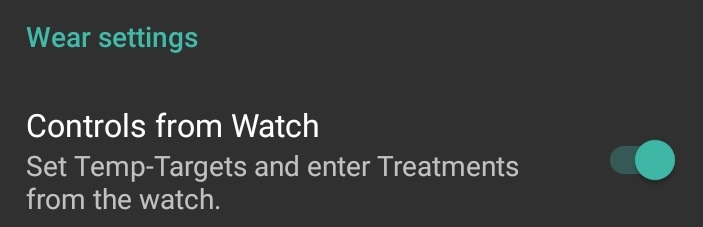
AAPS is designed to be controlled by Android Wear watches. If you want to bolus etc. from the watch then within «Wear settings» you need to enable «Controls from Watch».
The following functions can be triggered from the watch:
set a temporary target
use the bolus calculator (calculation variables can be defined in settings on the phone)
διαχείριση eCarbs
χορηγήση δόσης bolus (ινσουλίνη + υδατάνθρακες)
Ρυθμίσεις ρολογιού
κατάσταση
ελέξτε κατάσταση αντλίας
έλεγχος κατάστασης κυκλώματος
ελέγχος και εναλλαγή προφίλ, CPP (Circadian Percentage Profile = time shift + percentage)
show TDD (Total daily dose = bolus + basal per day)
Προσόψεις ρολογιού AAPS
There are several watchfaces to choose from that include average delta, IOB, currently active temp basal rate and basal profiles + CGM readings graph.
Βεβαιωθείτε ότι οι ειδοποιήσεις από το AndroidAPS δεν εμποδίζονται στο ρολόι. Confirmation of action (e.g. bolus, tempt target) comes via notification which you will need to swipe and tick.
Για να φτάσετε πιο γρήγορα στο μενού AAPS, κάντε διπλό πάτημα στο BG σας. With a double tap onto the BG curve you can change the time scale..
Διαθέσιμες προσόψεις ρολογιού
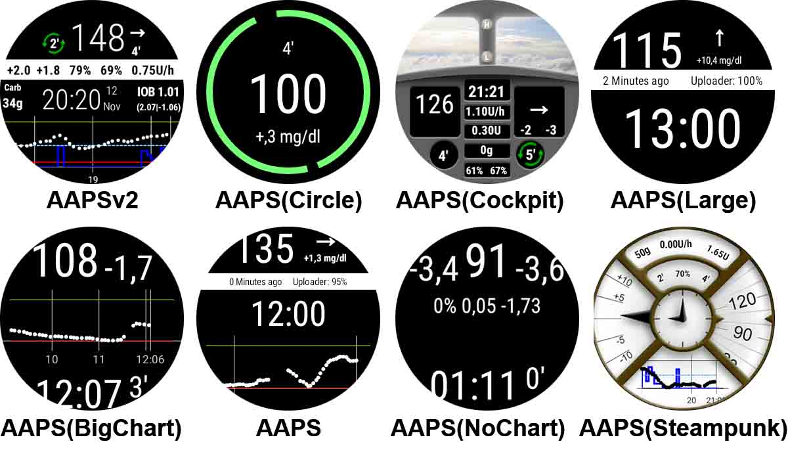
Νέα πρόσοψη ρολογιού ως AAPS 2.8
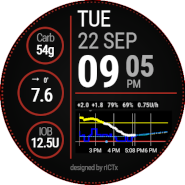
Το χρώμα, οι γραμμές και ο κύκλος διαμορφώνονται στο μενού ρύθμισης στο cog-sign του μενού επιλογής της πρόσοψης.
AAPSv2 Πρόσοψη ρολογιού - Legend
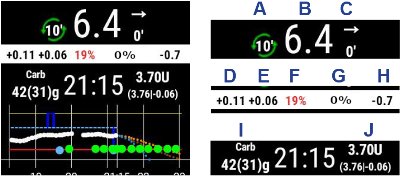
A - χρόνος από την τελευταία εκτέλεση του κυκλώματος
Β - Ανάγνωση CGM
Γ - λεπτά από την τελευταία ανάγνωση CGM
Δ - αλλαγή σε σχέση με την τελευταία ανάγνωση CGM (σε mmol ή mg / dl)
E - μέση αλλαγή ανάγνωσης CGM που διαρκεί 15 λεπτά
Ζ - μπαταρία τηλεφώνου
G - basal rate (shown in U/h during standard rate and in % during TBR)
H - BGI (blood glucose interaction) -> the degree to which BG “should” be rising or falling based on insulin activity alone.
I - carbs (carbs on board | e-carbs in the future)
J - insulin on board (from bolus | from basal)
Πρόσβαση στο κύριο μενού του AAPS
Για να αποκτήσετε πρόσβαση στο κύριο μενού του AAPS μπορείτε να χρησιμοποιήσετε τις παρακάτω επιλογές:
διπλό πάτημα στην τιμή γλυκόζης αίματος BG
επιλογή του εικονίδιου AAPS στο μενού εφαρμογών ρολογιού
tap on AAPS complication (if configured for menu)
Ρυθμίσεις (σε ρολόι)
Για πρόσβαση στις ρυθμίσεις πρόσοψης ρολογιού, μπείτε στο κύριο μενού AAPS, σύρετε προς τα πάνω και επιλέξτε «Ρυθμίσεις».
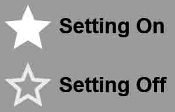
Filled star is for enabled state (On), and hollow star icon indicates that setting is disabled (Off):
Συνοδευτικές παράμετροι AAPS
Δόνηση στο Bolus (προεπιλογή
στο):Μονάδες για Ενέργειες (Προεπιλογή
mg/dl): εάν ** μονάδες** για ενέργειες είναιmg/dl, εάν η μονάδα Off είναιmmol/l. Χρησιμοποιείται κατά τη ρύθμιση ενός Προσωρινού στόχου από το ρολόι.
Ρυθμίσεις πρόσοψης ρολογιού
Εμφάνιση ημερομηνίας (προεπιλογή
Off): σημείωση, η ημερομηνία δεν είναι διαθέσιμη σε όλες τις προσόψειςΕμφάνιση IOB (προεπιλογή
On): Εμφάνιση ή όχι IOB τιμή (η ρύθμιση για λεπτομερή τιμή είναι στις ρυθμίσεις ρολογιού AAPS)Εμφάνιση COB (προεπιλογή
Στις): Εμφάνιση ή όχι τιμή COBΕμφάνιση Delta (προεπιλογή
Στις): Εμφάνιση ή όχι της απόκλισης BG των τελευταίων 5 λεπτώνΕμφάνιση AvgDelta (προεπιλογή
Στις): Εμφάνιση ή όχι η μέση μεταβολή BG των τελευταίων 15 λεπτώνΕμφάνιση μπαταρίας τηλεφώνου (προεπιλογή
On): Μπαταρία τηλεφώνου σε %. Κόκκινο εάν είναι κάτω από 30% .Show Rig Battery (default
Off): Η μπαταρία Rig είναι μια σύνθεση της μπαταρίας τηλεφώνου, μπαταρίας αντλίας και αισθητήρα (γενικά η χαμηλότερη από τις 3 τιμές)Εμφάνιση βασικού ρυθμού (προεπιλογή
On): Εμφάνιση ή όχι του τρέχοντος βασικού ρυθμού (σε U/h ή σε % εάν TBR)Show Loop Status (default
On): show how many minutes since last loop run (arrows around value turn red if above 15”).Show BG (default
On): Display or not last BG valueShow Direction Arrow (default
On): Display or not BG trend arrowShow Ago (default
On): show how many minutes since last reading.Dark (default
On): You can switch from black background to white background (except for Cockpit and Steampunk watch face)Highlight Basals (default
Off): Improve the visibility of basal rate and temp basalsMatching divider (default
Off): For AAPS, AAPSv2 and AAPS(Large) watchfaces, show contrast background for divider (Off) or match divider with the background color (On)Chart Timeframe (default
3 hours): you can select in the sub menu the max time frame of your chart between 1 hour and 5 hours.
User Interface setting
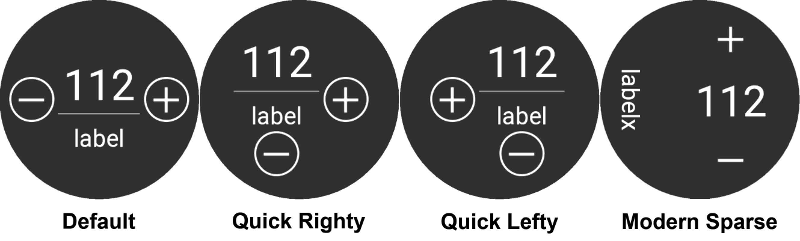
Input Design: with this parameter, you can select the position of «+» and «-» buttons when you enter commands for AAPS (TT, Insulin, Carbs…)
Specific watchface parameters
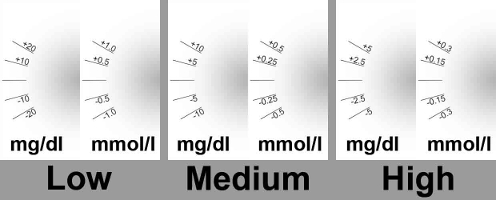
Steampunk watchface
Delta Granularity (default
Medium)
Circle WF
Big Numbers (default
Off): Increase text size to improve visibilityRing History (default
Off): View graphically BG history with gray rings inside the hour’s green ringLight Ring History (default
On): Ring history more discreet with a darker grayAnimations (default
On): When enabled, on supported by watch and not in power saving low-res mode, watchface circle will be animated
Commands settings
Wizard in Menu (default
On): Allow wizard interface in main menu to input Carbs and set Bolus from watchPrime in Menu (default
Off): Allow Prime / Fill action from watchSingle Target (default
On):On: you set a single value for TTOff: you set Low target and high target for TT
Wizard Percentage (default
Off): Allow bolus correction from wizard (value entered in percentage before confirmation notification)
Complications
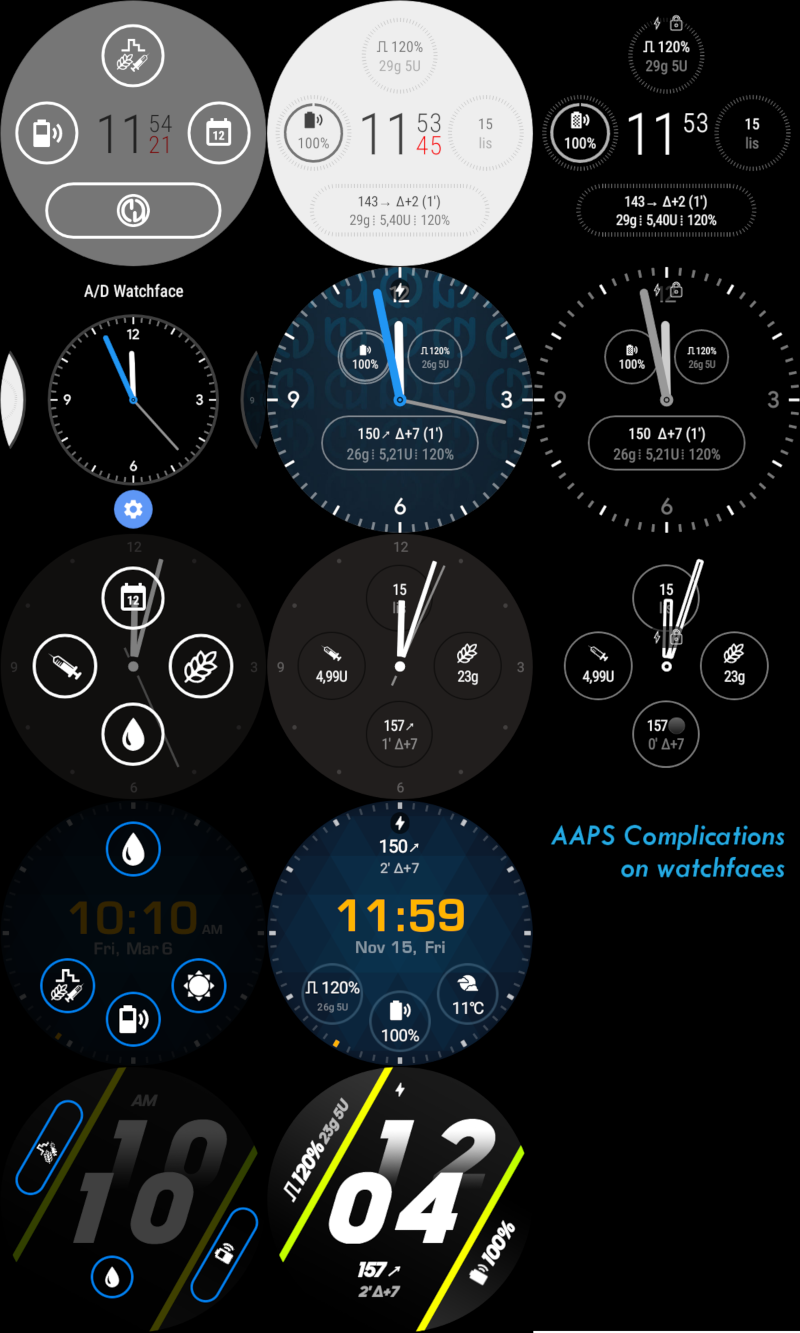
Complication is a term from traditional watchmaking, where it describes addition to the main watchface - as another small window or sub-dial (with date, day of the week, moon phase, etc.). Wear OS 2.0 brings that metaphor to allow custom data providers, like weather, notifications, fitness counters and more - to be added to any watchfaces that support complications.
AAPS Wear OS app supports complications since build 2.6, and allow any third party watchface that supports complications to be configured to display AAPS related data (BG with the trend, IOB, COB, etc.).
Complications also serve as shortcut to AAPS functions. By tapping them you can open AAPS related menus and dialogs (depending on complication type and configuration).
Complication Types
AAPS Wear OS app provides only raw data, according to predefined formats. It is up to third-party watchface to decide where and how to render complications, including its layout, border, color, and font. From many Wear OS complication types available, AAPS uses:
SHORT TEXT- Contains two lines of text, 7 characters each, sometimes referred to as value and label. Usually rendered inside a circle or small pill - one below another, or side by side. It is a very space-limited complication. AAPS tries to remove unnecessary characters to fit-in: by rounding values, removing leading and trailing zeroes from values, etc.LONG TEXT- Contains two lines of text, about 20 characters each. Usually rendered inside a rectangle or long pill - one below another. It is used for more details and textual status.RANGED VALUE- Used for values from predefined range, like a percentage. It contains icon, label and is usually rendered as circle progress dial.LARGE IMAGE- Custom background image that can be used (when supported by watchface) as background.
Ρύθμιση πρόσθετων δυνατοτήτων
Για να προσθέσετε μια δυνατότητα (πολυπλοκότητα) στο ρολόι, ρυθμίστε το με παρατεταμένο πάτημα και κάνοντας κλικ στο παρακάτω εικονίδιο εργαλείων. Ανάλογα με το πώς ρυθμίζεται η συγκεκριμένη πρόσοψη - είτε κάντε κλικ στο placeholders είτε εισάγετε το μενού ρυθμίσεων της πρόσοψης για πολυπλοκότητες. Οι πολυπλοκότητες AAPS ομαδοποιούνται κάτω από την καταχώρηση μενού AAPS.
Όταν ρυθμίζετε πολυπλοκότητες στην πρόσοψη του ρολογιού, το Wear OS θα παρουσιάσει και θα φιλτράρει τη λίστα των πολυπλοκοτήτων που μπορεί να ταιριάζουν στο επιλεγμένο μέρος της πρόσοψης. Εάν δεν εμφανίζεται κάποια συγκεκριμένη πολυπλοκότητα στη λίστα, αυτό οφείλεται πιθανώς στο ότι δεν μπορεί να χρησιμοποιηθεί για το δεδομένο μέρος.
Πολυπλοκότητες που παρέχονται από το AAPS
Το AAPS παρέχει τις ακόλουθες πολυπλοκότητες:
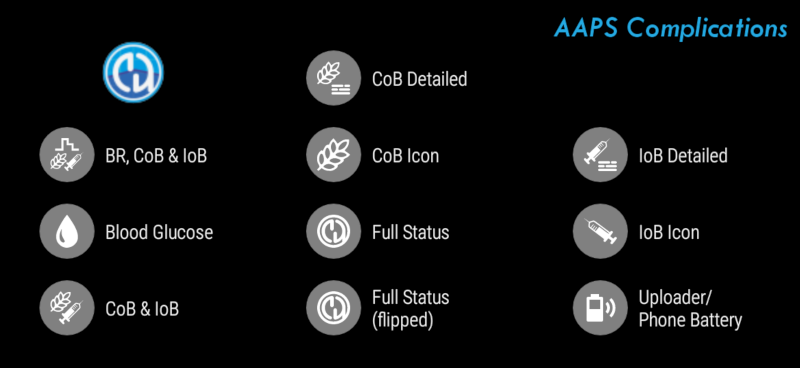
BR, CoB & IoB (
SHORT TEXT, opens Menu): Εμφανίζει Βασικό ρυθμό στην πρώτη γραμμή Ενεργούς Υδατάνθρακες και Ενεργή Ινσουλίνη στην δεύτερη γραμμή.Blood Glucose (
SHORT TEXT, opens Menu): Εμφανίζει τιμή Γλυκόζης αίματος και *βέλος * τάσης στην πρώτη γραμμή χρόνο μέτρησης και διαφορά γλυκόζης αίματος στην δευτερη γραμμή.CoB & IoB (
SHORT TEXT, opens Menu): Εμφανίζει *Ενεργόυς Υδατάνθρακες * στην πρώτη γραμμή και *Ενεργή Ινσουλίνη * στην δεύτερη γραμμή.CoB Detailed (
SHORT TEXT, opens Wizard):Εμφανίζει *Carbs τρέχοντες Ενεργούς Υδατάνθρακες * στην πρώτη γραμμή και προγραμματισμένους (μελλοντικούς , eCarbs) στην δεύτερηCoB Icon (
SHORT TEXT, opens Wizard): Εμφανίζει τιμή Ενεργών Υδατανθράκων με στατικό εικονίδιο.Full Status (
LONG TEXT, opens Menu): Εμφανίζει τα περισσότερα δεδομένα: τιμή Γλυκόζης Αίματος και trend βέλος, διαφορά Γλυκόζης αίματος και χρόνο μέτρησης στην πρώτη γραμμή. Στη δεύτερη γραμμή Ενεργούς Υδατάνθρακες, Ενεργλη Ινσουλίνη και Βασικό Ρυθμό.Full Status (flipped) (
LONG TEXT, opens Menu): Same data as for standard Full Status, but lines are flipped. Can be used in watchfaces which ignores one of two lines inLONG TEXTIoB Detailed (
SHORT TEXT, opens Bolus): Displays total Insulin on Board on the first line and split of IoB for Bolus and Basal part on the second line.IoB Icon (
SHORT TEXT, opens Bolus): Displays Insulin on Board value with a static icon.Uploader/Phone Battery (
RANGED VALUE, opens Status): Displays battery percentage of AAPS phone (uploader), as reported by AAPS. Displayed as percentage gauge with a battery icon that reflects reported value. It may be not updated in real-time, but when other important AAPS data changes (usually: every ~5 minutes with new Blood Glucose measurement).
Additionally, there are three complications of LARGE IMAGE kind: Dark Wallpaper, Gray Wallpaper and Light Wallpaper, displaying static AAPS wallpaper.
Wear OS Tiles
Wear OS Tiles provide easy access to users” information and actions to get things done. The tiles are only available on Android smartwatches running on Wear Os version 2.0 and higher.
Tiles allow you to quickly access actions on the AAPS application without going through the watch face menu. The tiles are optional and can be added and configured by the user.
The tiles are used «next to» any watch face. To access a tile, when enabled, swipe right to left on your watch face to show them.
Please note; that the tiles do not hold the actual state of the AAPS phone app and will only make a request, which has to be confirmed on the watch before it is applied.
How to add Tiles
Before using the tiles, you have to switch on «Control from Watch» in the «Wear OS» settings of Android APS.
Depending on your Wear OS version, brand and smartphone there are two ways of enabling the tiles:
On your watch, from your watch face;
Swipe right to left till you reach the «+ Add tiles»
Select one of the tiles.
On your phone open the companion app for your watch.
For Samsung open «Galaxy Wearable», or for other brands «Wear OS»
In the click on the section «Tiles», followed by «+ Add» button
Find the AAPS tile you like to add by selecting it.
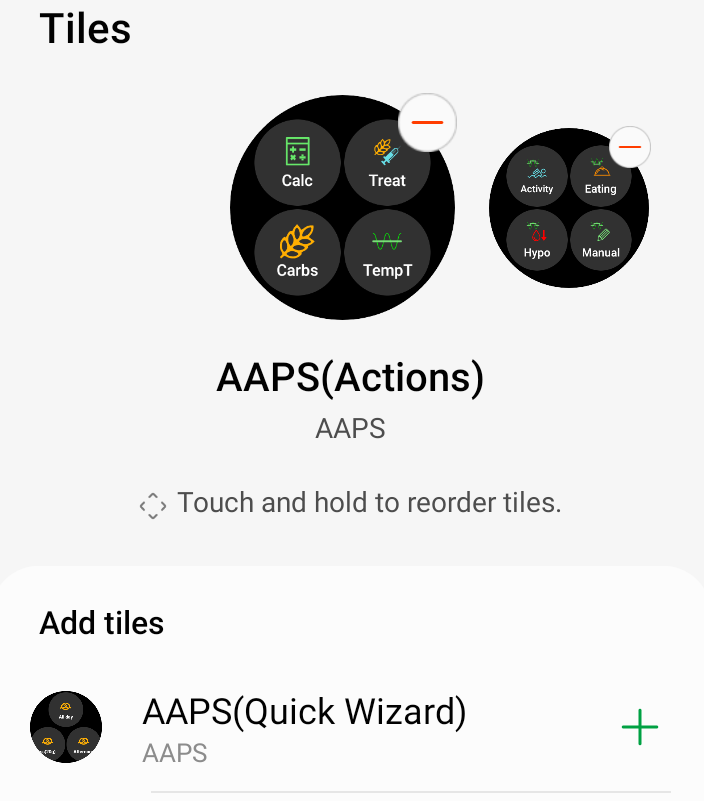 The order of the tiles can be changed by dragging and dropping
The content of the tiles can be customized by long-pressing a tile and clicking the «Edit» or «gear icon» button.
APS(Actions) Tile
The action tile can hold 1 to 4 user-defined action buttons. To configure, long-press the tile, which will show the configuration options. Similar actions are also available through the standard watch menu.
Actions supported in the Action tile can request the AAPS phone app for:
Calc; do a bolus calculation, based on carb input and optional a percentage [1]
Insulin; request insulin delivery by entering the unit of insulin
Treatment; request both insulin delivery and add carbs
Carbs; add (extended) carbs
TempT; set a custom temporary target and duration
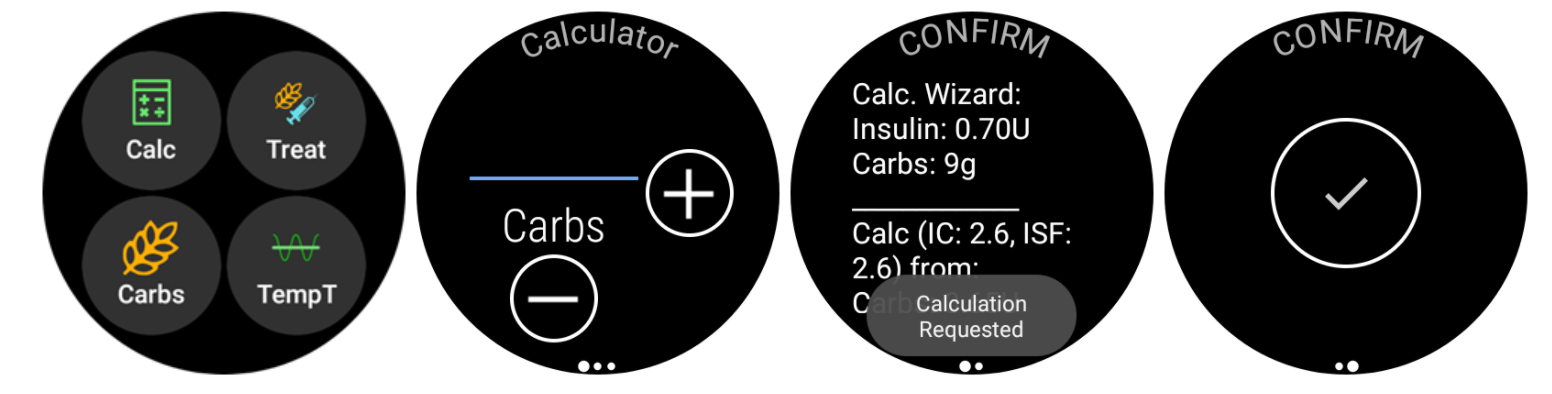
[1] Via, the Wear OS menu, set the «Calculator Percentage» option to «ON» to show the percentage input in the bolus calculator. The default percentage is based on the phone settings in the»Overview» section «Deliver this part of the bolus wizard result %» When the user does not provide a percentage, the default value from the phone is used. Configure the other parameters for the bolus calculator in the phone app via «Preferences» «Wizard Settings».
AAPS(Temp Target) Tile
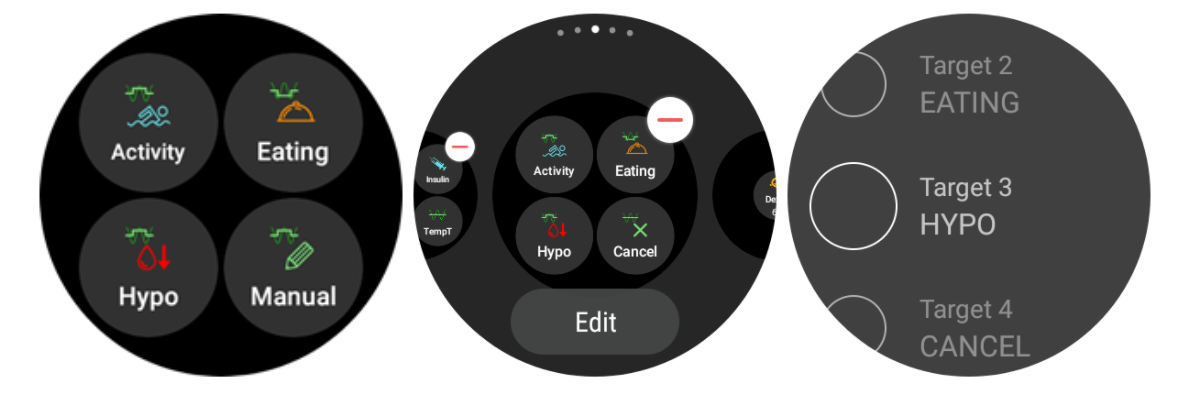
The Temp Target Tile can request a temporary target based on AAPS phone presets. Configure preset time and targets through the phone app setting by going to «Preferences», «Overview», «Default Temp-Targets» and set the duration and targets for each preset. Configure the visible actions on the tile through the tile settings. Long press the tile to show the configuration options and select 1 to 4 options:
Activity; for sport
Hypo; to raise the target during hypo treatment
Eating soon; to lower the target to raise the insulin on board
Manual; set a custom temporary target and duration
Cancel; to stop the current temporary target
AAPS(QuickWizard)Tile
The QuickWizard tile can hold 1 to 4 quick wizard action buttons, defined with the phone app[2]. See QuickWizard. You can set standard meals (carbs and calculation method for the bolus) to be displayed on the tile depending on the time of the day. Ideal for the most common meals/snacks you eat during the day. You can specify if the quick wizard buttons will show on the phone, watch, or both. Please note that the phone can show only one quick wizard button at a time. The quick wizard setup also can specify a custom percentage of the insulin for the bolus. The custom percentage enables you to vary, for example, snack at 120%, slow absorbing breakfast 80% and hypo treatment sugar snack at 0%
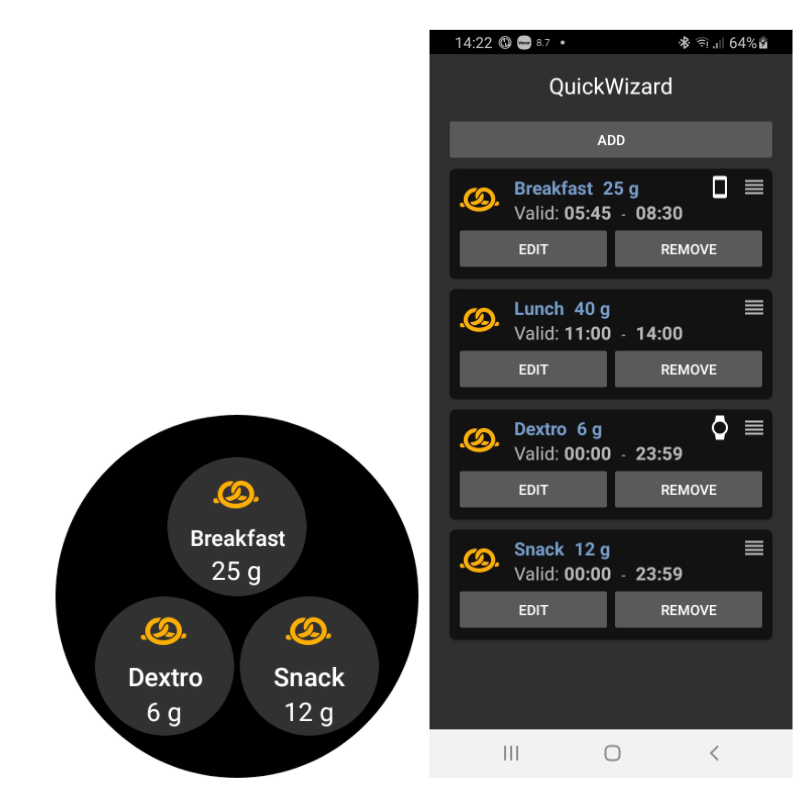
[2] Wear OS limits tiles update frequency to only once every 30 seconds. When you notice that the changes on your phone are not reflected on the tile, consider; waiting 30 seconds, using the «Resend all data» button from the Wear OS section of AAPS, or removing the tile and adding it again. To change the order of the QuickWizard buttons dragging an item up or down.
Always on
Long battery life for Android Wear OS smartwatches is a challenge. Some smartwatches get as much as 30 hours before recharging. The display should be switched off for optimal power saving when not in use. Most watches support the “Always on” display.
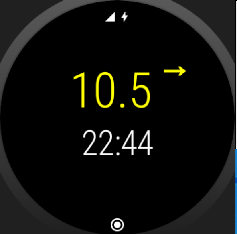
Since AAPS version 3, we can use a “Simplify UI” during always-on-mode. This UI only contains the blood glucose, direction, and time. This UI is power-optimized with less frequent updates, showing less information and lightening fewer pixels to save power on OLED displays.
The simplified UI mode is available for the watch-faces: AAPS, AAPS V2, Home Big, Digital Style, Steampunk, and Cockpit. The simplified UI is optional and is configured through the watch face settings. (log press the watch face and click “edit” or the gear icon) Select the configuration “Simplify UI» and set it to “Always on” or “Always on and charging”.
Night-time mode
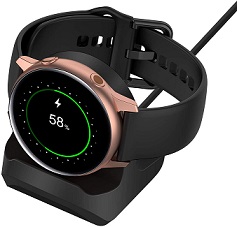
While charging, it would be helpful if the display could stay “always-on” and show your blood glucose during the night. However, the standard watch-faces are too bright and have too much information, and the details are hard to read with sleepy eyes. Therefore, we added an option for the watch-face to simplify the UI only during charging when set in the configuration.
The simplified UI mode is available for the watch-faces: AAPS, AAPS V2, Home Big, Digital Style, Steampunk, and Cockpit. The simplified UI is optional and is configured through the watch face settings. (log press the watch face and click “edit” or the gear icon) Select the configuration “Simplify UI» and set it to “During charging” or “Always on and charging”
The Android developer options enable your watch to stay awake during charging. To make the developer options available, see the official documentation. Set the “Stay awake when charging” to “on” in the developer options”.
Note: not all displays can handle always-on very well. It can cause screen burn-in, especially on the older OLED displays. The watches will generally dim the display to prevent burn-in; please check your owner’s manual, the manufacturing, or the internet for advice.
Snooze Alert shortcut
It is possible to create a shortcut to snooze the alerts/alarm of AAPS. Muting the sound via your watch is convenient and faster without reaching for your phone. Note; you still have to check your alarm message on your phone and handle it accordingly, but you can check that later. When your watch has two buttons, you can assign a key to the AAPS Snooze Alert program.
To link the button on the Samsung Watch 4 go to Settings > Advanced Features > Customize Buttons > Double press > AAPS Snooze Alert
Snooze xDrip
When you use xDrip and have xDrip installed on the watch, the “AAPS Snooze Alert” shortcut will also Snooze any xDrip alarm.
Performance and battery life tips
Wear OS watches are very power-constrained devices. The size of the watch case limits the capacity of the included battery. Even with recent advancements both on hardware and software side, Wear OS watches still require daily charging.
If an experienced battery span is shorter than a day (from dusk to dawn), here are some tips to troubleshoot the issues.
Main battery-demanding areas are:
Active display with a backlight on (for LED) or in full intensity mode (for OLED)
Rendering on screen
Radio communication over Bluetooth
Since we cannot compromise on communication (we need up-to-date data) and want to have the most recent data rendered, most of the optimizations can be done in display time area:
Stock watchfaces are usually better optimized than custom one, downloaded from the store.
It is better to use watchfaces that limit the amount of rendered data in inactive / dimmed mode.
Be aware when mixing other Complications, like third party weather widgets, or other - utilizing data from external sources.
Start with simpler watchfaces. Add one complication at the time and observe how they affect battery life.
Try to use Dark theme for AAPS watchfaces, and Matching divider. On OLED devices it will limit the amount of pixels lit and limit burnout.
Check what performs better on your watch: AAPS stock watchfaces or other watchfaces with AAPS Complications.
Observe over a few days, with different activity profiles. Most watches activate the display on glancing, movement and other usage-related triggers.
Check your global system settings that affect performance: notifications, backlight/active display timeout, when GPS is activated.
Check list of tested phones and watches and ask community for other users experiences and reported battery lifetime.
We cannot guarantee that data displayed on watchface or complication is up-to-date. In the end, it is up to Wear OS to decide when to update a watchface or a complication. Even when the AAPS app requests update, the System may decide to postpone or ignore updates to conserve battery. When in doubt and low on battery on watch - always double-check with main AAPS app on phone.
Troubleshooting the wear app:
Sometimes it helps to re-sync the apps to the watch as it can be a bit slow to do so itself: Android Wear > Cog icon > Watch name > Resync apps.
Enable ADB debugging in Developer Options (on watch), connect the watch via USB and start the Wear app once in Android Studio.
If Complications does not update data - check first if AAPS watchfaces work at all.
Sony Smartwatch 3
The Sony Smartwach 3 is one of the most popular watches to be used with AAPS.
Unfortunately Google dropped support for wear OS 1.5 devices in fall 2020. This leads to problems when using Sony SW3 with AAPS 2.7 and above.
A possible workaround can be found on this troubleshooting page.
Προβολή δεδομένων Nightscout
If you are using another looping system and want to view your looping detail on an Android Wear watch, or want to watch your child’s looping, then you can build/download just the NSClient APK. To do this follow the build APK instructions selecting the build variant «NSClientRelease». There are several watchfaces to choose from that include average delta, IOB, currently active temp basal rate and basal profiles + CGM readings graph.
Pebble
Pebble users can use the Urchin watchface to view looping data (if uploaded to Nightscout), but you will not be able to interact with AAPS through the watch. You can choose fields to display such as IOB and currently active temp basal rate and predictions. If open looping you can use IFTTT to create an applet that says if Notification received from AAPS then send either SMS or pushover notification.