Mise à jour vers une nouvelle version ou une branche
Notes for specific versions
Construire vous-même au lieu de télécharger
AAPS is not available to download, due to regulations concerning medical devices. Il est légal de construire l’application pour votre usage personnel, mais vous ne devez en aucun cas donner une copie à d’autres personnes ! See FAQ page for details.
Remarques importantes
Please update to the new version of AAPS as soon as possible after a new release is available.
When a new release is available, in the AAPS app itself, you will receive an information banner about the new version.
The new version will also be announced on Facebook at the time of release.
Following the release, please read the Release Notes in detail, and clarify any queries with the community on Facebook or Discord, before proceeding with the update.
You need to use version Android Studio version called at least Hedgehog (2023.1.1) or one more recent like Iguana, Jellyfish, Koala or Ladybug of Android Studio. If your version is older, please update first Android Studio first!
Overview for updating to a new version of AAPS
Export your settings from the existing AAPS version on your phone. You might not need it, but better be safe than sorry.
Update local copy of the AAPS sourcecode (Git->Fetch and Git -> Pull)
Transfer the built apk to your phone and install it
Check the version in AAPS
Depending on your BG source make sure to identify receiver in xDrip or use the “Build your own Dexcom App”.
In case you experience problems, see separate page for troubleshooting Android Studio.
1. Exporter les paramètres
See the Export & import settings page if you don’t remember how to do this.
2. Mettez à jour votre copie locale
WARNING :class: warning If you update from versions prior to 2.8.x, please follow the instructions to do a New clone, as this guide will not work for you!
<br />* Open your existing AAPS project with Android Studio. You might need to select your project. (Double) click on the AAPS project.

* In the menu bar of Android Studio, select Git -> Fetch

* You will see a message in the lower right corner that Fetch was successful.

* In the menu bar, now select Git -> Pull

* Leave all options as they are (origin/master) and select Pull

* Wait while download is in progress, you will see this as info in the bottom bar. Une fois terminé, vous verrez un message de réussite.
```{note}
The files that were updated may vary! This is not an indication
```

* Gradle Sync will be running to download some dependencies. Patientez jusqu'à ce que ce soit fini.

(Update-to-new-version-build-the-signed-apk)=
## 3. Build the Signed APK
Your sourcecode is now the current released version. It's time to build the signed apk from it as described in the [build signed apk section](#Building-APK-generate-signed-apk).
(Update-to-new-version-transfer-and-install)=
## 4. Transfer and install the apk
You need to transfer the apk to your phone so you can install it.
```{note}
If you completed the build with the same existing key store in Android Studio, then you do not need to remove the existing app on your phone. Lorsque vous installez l'apk, suivez les instructions pour installer les mises à jour.
Pour d'autres scénarios comme la création d'un nouveau fichier de clés dans Android Studio pour votre apk signé, vous devrez d'abord supprimer l'ancienne application avant d'installer l'apk. **Make sure to export your settings!**
See the instructions for transferring and installing AAPS
5. Vérifier la version d’AAPS sur le téléphone
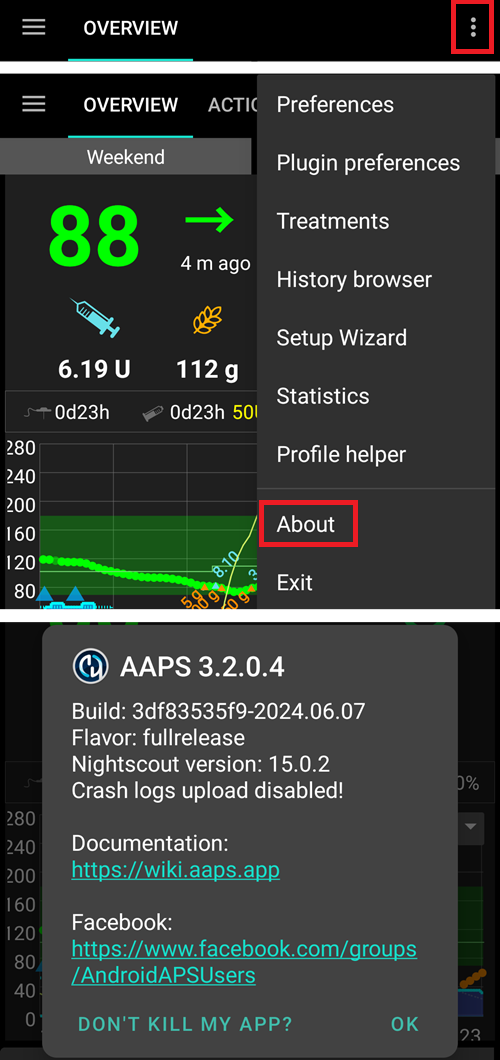
Après avoir installer le nouvel apk, vous pouvez vérifier la version AAPS sur votre téléphone en cliquant sur le menu 3 points en haut à droite puis sur « à propos ». Vous devriez voir la version actuelle en résultat.
Troubleshooting
Si quelque chose ne va pas, ne paniquez pas.
Respirez un bon coup !
Then see the separate page troubleshooting Android Studio if your problem is already documented!
If you need further help, please reach out to other AAPS users on Facebook or Discord.