Timezone Change and Daylight Saving
Zona horaria viajando con bombas
Timezone change for Omnipod Dash
Refresh the Dash tab
Temporarily select a different Profile and then switch back to your original or desired Profile
Timezone change for DanaR, Korean DanaR
No hay problema con cambiar el huso horario en el teléfono porque la bomba no utiliza el historial
Timezone change for DanaRv2, DanaRS
These pumps require special care because AAPS uses history from the pump but the records in pump do not have timezone stamp. This means that if you change time zone in your phone, records will be read with different time zone and will be doubled.
To avoid this there are two possibilities:
Opción 1: Conservar la zona horaria original el perfil de tiempo
Turn off “Automatic date and time” in your phone’s settings (manual time zone change).
Your phone must keep your standard time as at home for the whole travel period.
Time-shift your Profile according to time difference between home time and destination time.
Long-press Profile name (middle of top section on homescreen)
Select “Profile Switch”
Establezca la “Diferencia de horas” según el destino.
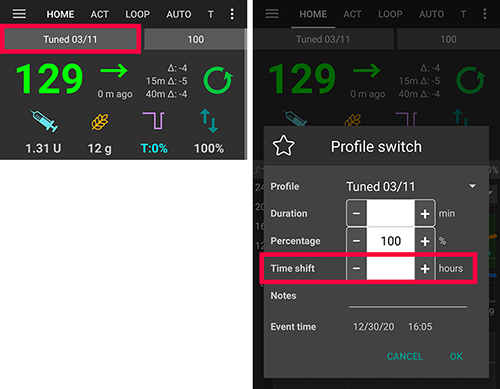
i.e. Vienna -> New York: Profile Switch +6 hours
i.e. Vienna -> Sydney: Profile Switch -8 hours
Opción 2: Suprimir historial de bomba
Desactiva “Fecha y hora automática” en la configuración de tu teléfono (cambio de zona horaria manual)
When get out of plane:
apague la bomba
cambiar huso horario por teléfono
apagar teléfono, encender bomba
borrar historial en la bomba
cambiar hora en la bomba
activar el teléfono
deje que el teléfono se conecte a la bomba y se ajuste de tiempo
Timezone Change for Insight
The driver automatically adjusts the time of the pump to the time of the phone.
The Insight also records the history entries in which moment time was changed and from which (old) time to which (new) time. So the correct time can be determined in AAPS despite the time change.
It may cause inaccuracies in the TDDs. But it shouldn’t be a problem.
So the Insight user doesn’t have to worry about timezone changes and time changes. There is one exception to this rule: The Insight pump has a small internal battery to power time etc. while you are changing the «real» battery. If changing battery takes to long this internal battery runs out of energy, the clock is reset and you are asked to enter time and date after inserting a new battery. In this case all entries prior to the battery change are skipped in calculation in AAPS as the correct time cannot be identified properly.
Timezone Change for Accu-Chek Combo
The new Combo driver automatically adjusts the time of the pump to the time of the phone. The Combo cannot store timezones, only local time, which is precisely what the new driver programs into the pump. In addition, it stores the timezone in the local AAPS preferences to be able to convert the pump’s localtime to a full timestamp that has a timezone offset. The user does not have to do anything; if the time on the Combo deviates too much from the phone’s current time, the pump’s time is automatically adjusted.
Note that this takes some time, however, since it can only be done in the remote-terminal mode, which is generally slow. This is a Combo limitation that cannot be overcome.
The old, Ruffy-based driver does not adjust the time automatically. The user has to do that manually. See below for the steps necessary to do that safely in case the timezone / daylight savings is the reason for the change.
Timezone Change for Medtrum
The driver automatically adjusts the time of the pump to the time of the phone.
Time zone changes keep the history intact, only TDD may be affected. Manually changing the time on the phone can cause problems with the history and IOB. If you change time manually double check the IOB.
When the time zone or time changes running TBR’s are stopped.
DAYLIGHT SAVING (DST)
Time adjustment daylight savings time
Depending on your pump and CGM setup, jumps in time can lead to problems with AAPS to function correctlyy. For instance with the Combo pump, the pump history is read twice leading to duplicate entries. For some pumps it is better to make time zone adjustments while awake and not during the night.
DST automatic adjustment for most pumps
This adjustment feature is available for AAPS version 2.2 onwards.
Howeever, the fully closed Loop will be deactivated for 3 hours AFTER the DST switch (usually 1am onwards) has taken place and AAPS will default to background basal as selected in your Profile. This is done for safety reasons - IOB may be too high due to duplicated bolus prior to DST change.
After DST has taken place, select Profile Switch to user’s desired Profile to enable fully closed Loop.
You will also receive a notification on AAPS main screen prior to DST change that the Fully Closed Loop has been disabled temporarily. This message will appear without beep, vibration or anything.**
If you bolus with AAPS” calculator please do not use COB and IOB data unless you are sure this data is absolutely correct. Take caution and do not use this feature for a couple of hours after DST switch has taken place.
DST for Accu-Chek Insight
El cambio a DST se realiza automáticamente. No se requiere acción.
DST for Medtrum
El cambio a DST se realiza automáticamente. No se requiere acción.
DST for Omnipod Dash
Either allow AAPS to temporarily default background basal after DST has taken place as explained above.
Otherwise, if you do not want AAPS to temporarily default to background basal overnight, you can change the time zone the day prior DST is due to take place to avoid overnight disruption. NOTE THIS OPTION MAY CAUSE YOUR POD TO PREMATURELY EXPIRE. PLEASE HAVE SUPPLIES WITH YOU IF OPTING FOR THE FEATURE BELOW.
Actions to take before the clock change
Switch OFF any Phone’s settings that automatically sets the Phone’s time zone, so the user can change to a time zone that does not use DST. How to enable this will depend on your smartphone and Android version.
Some phones have two settings, one for automatic setting of the time (which ideally should remain on) and one for automatic setting of the time zone (which you must turn OFF).
Unfortunately, some Android versions have a single switch to enable automatic setting of both the time and the timezone. You’ll have to turn this off for now.

Find a timezone that has the same time as your current location but doesn’t use DST.
A list of these countries is available https://greenwichmeantime.com/countries
Para el Tiempo Central Europeo (CET) esto podría ser «Brazzaville» (Kongo). Cambia la zona horaria de tu teléfono a Kongo.

AAPS refresh your pump and switch to your desired Profile.
Check AAPS’s IOB and COB and if this is inaccurate disable the Fully Closed Loop for at least one DIA and Max-Carb-Time - whatever is bigger.
Actions to take after the clock change. A good time to make revert to local time zone is with low IOB. E.g. an hour before a meal such as breakfast. Ideally your COB and IOB should both be close to zero.
DST for Accu-Chek Combo
This section is only valid for the old, Ruffy-based driver. The new driver adjusts date and time and DST automatically.
AAPS will issue an alarm if the time between pump and phone differs too much. In case of DST time adjustment, this would be in the middle of the night. To prevent this and enjoy your sleep instead, follow these steps so that you can force the time change at a time convenient to yourself:
Actions to take before the clock change
Switch OFF any setting that automatically sets the timezone, so you can force the time change when you want to. How you can do this will depend on your smartphone and Android version.
Some have two settings, one for automatic setting of the time (which ideally should remain on) and one for automatic setting of the timezone (which you must turn OFF).
Unfortunately some Android versions have a single switch to enable automatic setting of both the time and the timezone. You’ll have to turn this off for now.
Screenshot_20260329-110315 (1)
Find a timezone that has the same time as your current location but doesn’t use DST.
A list of these countries is available https://greenwichmeantime.com/countries
Para el Tiempo Central Europeo (CET) esto podría ser «Brazzaville» (Kongo). Cambia la zona horaria de tu teléfono a Kongo.
In AAPS refresh your pump.
Check the Treatments tab… If you see any duplicate treatments:
DON’T press «delete treatments in the future»
Pulse «remove» en todos los tratamientos futuros y en los duplicados. Esto debe invalidar los tratamientos en lugar de eliminarlos para que ya no se tengan en cuenta para el IOB.
If the situation on how much IOB/COB is unclear - for safety please disable the loop for at least one DIA and Max-Carb-Time - whatever is bigger.*
Actions to take after the clock change
A good time to make this switch would be with low IOB. E.g. an hour before a meal such as breakfast, (any recent boluses in the pump history will have been small SMB corrections. Your COB and IOB should both be close to zero.)
Change the Android timezone back to your current location and re-enable automatic timezone.
AAPS will soon start alerting you that the Combo’s clock doesn’t match. So update the pump’s clock manually via the pump’s screen and buttons.
On the AAPS “Combo” screen, press Refresh.
Then go to the Treatments screen, and look for any events in the future. There shouldn’t be many.
DON’T press «delete treatments in the future»
Pulse «remove» en todos los tratamientos futuros y en los duplicados. Esto debe invalidar los tratamientos en lugar de eliminarlos para que ya no se tengan en cuenta para el IOB.
If the situation on how much IOB/COB is unclear - for safety please disable the loop for at least one DIA and Max-Carb-Time - whatever is bigger.*
Continue as normal.