Updating to AAPS 3.2.0.4
Build yourself instead of download
The AAPS app (an apk file) is not available for download, due to regulations around medical devices. It is legal to build the app for your own use, but you must not give a copy to others!
See FAQ page for details.
Computer and software specifications for building AAPS 3.2.0.4
A specific Android Studio version may be required to build the apk.
AAPS Version |
Preferred |
Alternative |
Gradle |
JVM |
|---|---|---|---|---|
Hedgehog (2023.1.1) |
up to Meerkat |
8.2 |
17 |
The “preferred version” is packaged with the appropriate JVM version. The preferred version is also the minimal version you can use to build AAPS. You will NOT be able to build on a version older than the “preferred” one. If using a different version, you may encounter issues related to JVM version. See the Troubleshooting Android Studio page to help solve these issues. If your current Android Studio version is not listed in the table, you must update it first.
The Gradle version is linked to the source code, you will always get the correct Gradle version when downloading / updating the source code. It is mentioned here for reference only, you don’t have to take action on it.
Windows 32-bit systems are not supported by Android Studio. Please keep in mind that both 64 bit CPU and 64 bit OS are mandatory condition. If your system DOES NOT meet this condition, you have to change affected hardware or software or the whole system.
| OS (Only 64 bit) | Windows 8 or higher | Mac OS 10.14 or higher | Any Linux supports Gnome, KDE, or Unity DE; GNU C Library 2.31 or later |
|---|---|---|---|
CPU (Only 64 bit) |
x86_64 CPU architecture; 2nd generation Intel Core or newer, or AMD CPU with support for a Windows Hypervisor |
ARM-based chips, or 2nd generation Intel Core or newer with support for Hypervisor.Framework |
x86_64 CPU architecture; 2nd generation Intel Core or newer, or AMD processor with support for AMD Virtualization (AMD-V) and SSSE3 |
RAM |
8GB or more |
||
Disk |
At least 30GB free space. SSD is recommended. |
||
Resolution |
1280 x 800 Minimum |
||
Internet |
Broadband |
||
It is strongly recommended (not mandatory) to use SSD (Solid State Disk) instead of HDD (Hard Disk Drive) because it will take less time when you are building the AAPS apk file. You can still use a HDD when you are building the AAPS apk file. If you do, the building process may take a long time to complete, but once it has started, you can leave it running unattended.
Help and support during 3.2.0.4 building process
If you run into difficulties in the process of building the AAPS app, there is a dedicated troubleshooting Android Studio section, please consult that first.
If you think something in the building instructions is wrong, missing or confusing, or you are still struggling, please reach out to other AAPS users group on Facebook or Discord. If you want to change something yourself (updating screenshots etc), please submit a pull request (PR).
Note
This page provides both example pictures for the New and old (Classic) Android Studio user interfaces.
Overview for updating 3.2.0.x to 3.2.0.4
Export your current settings
Export your settings from the existing AAPS version on your phone. You might not need it, but better be safe than sorry.
See the Export & import settings page if you don’t remember how to do this.
Update your local AAPS copy
Open your existing AAPS project with Android Studio. You might need to select your project. (Double) click on the AAPS project.
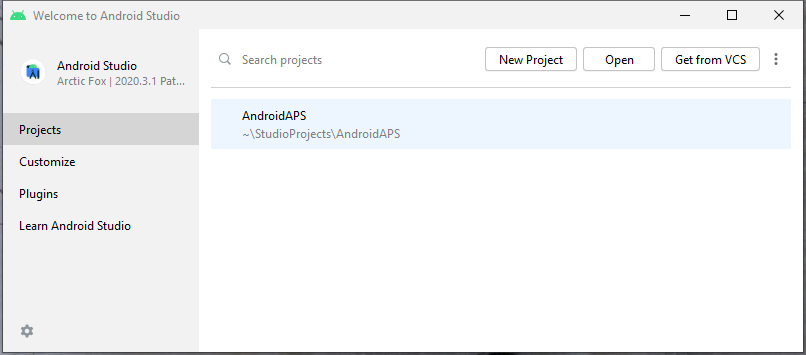

In the menu bar of Android Studio, select Git -> Fetch


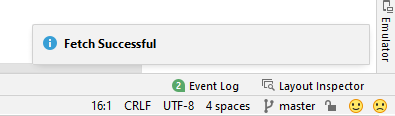
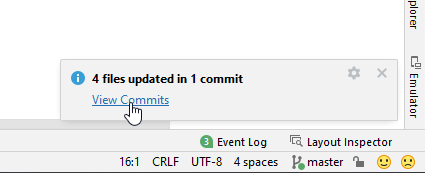
You will see a message in the lower right corner that Fetch was successful.

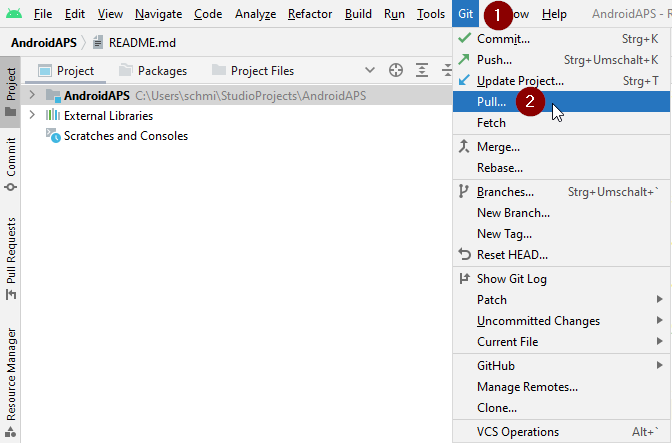
In the menu bar, now select Git -> Pull

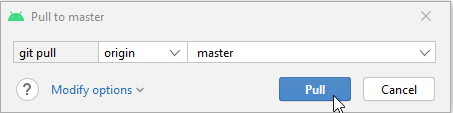
Leave all options as they are (origin/master) and select Pull

Wait while download is in progress, you will see this as info in the bottom bar. When it’s done, you will see a success message.
Note
The files that were updated may vary! This is not an indication

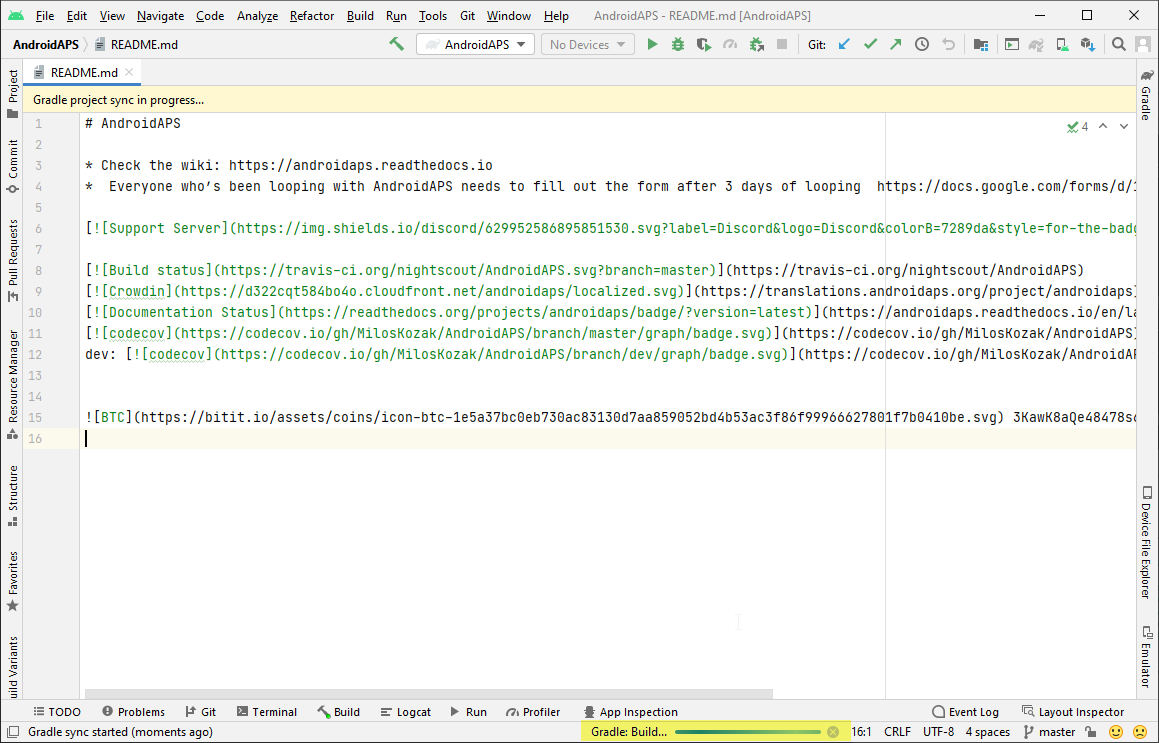
Gradle Sync will be running to download some dependencies. Wait until it is finished.

Select JVM version 17
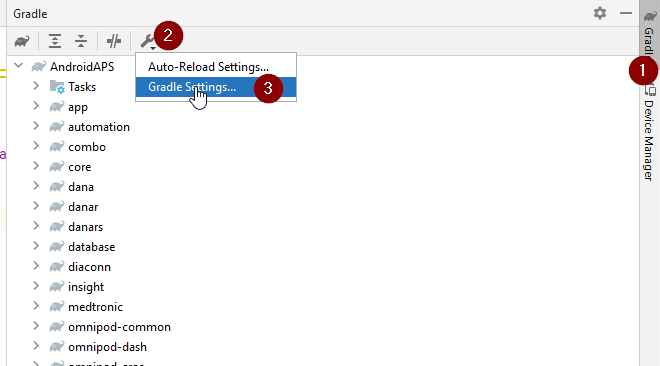
Open the Gradle view by clicking on the elephant (1) on the right side of Android Studio and open the settings (2) and select Gradle Settings (3):

In Gradle JDK field, check if the appropriate version: jbr-17 is selected (1) If not, click on the field, and see if it is already available in the list.

In Version (1), select 17. In Vendor (2) select JetBrains Runtime or any Vendor. Location (3): do not change.

Close the Settings dialog with OK.
Select the AAPS 3.2.0.4 branch
At the bottom left, select the Git symbol, right-click on 3.2.0.4 and Checkout.


Sync project with Gradle
WARNING!
Never update Gradle. Always sync it with the project.
Use the elephant icon and Sync Project with Gradle Files (or follow this) for the new UI.

Or (this) for the classic UI.

Build the Signed 3.2.0.4 APK
Your sourcecode is now the current released version, and all prerequisites have been checked. It’s time to build the signed apk as described in the build signed apk section.
Transfer and install the 3.2.0.4 APK
You need to transfer the apk to your phone so you can install it.
Note
If you completed the build with the same existing key store in Android Studio, then you do not need to remove the existing app on your phone. When you install the apk, follow the prompts to install updates. For other scenarios such as establishing a new key store in Android Studio for your signed apk, you will need to delete the old app before installing the apk. Make sure to export your settings!
See the instructions for transferring and installing AAPS
Check AAPS version 3.2.0.4 on phone
After you installed the new apk, you can check the AAPS version on your phone by clicking the three dots menu on the top right and then About. You should see the current version.