Nightscout
Security considerations
Nightscout is the reporting and monitoring server of AAPS: AAPS uploads your data to it, and you or your caregivers look at it on the Nightscout website or in follower apps. It holds your medical data, profiles and treatments, so it is worth thinking about securing your Nightscout website.
In AAPS 4, remote control does not go through the Nightscout website. While client control is on (hardened mode), treatments or targets typed directly into Nightscout are not applied by AAPS. Remote commands come from a paired AAPSClient instead — see Master ↔ Client control.
Exercise maximum caution if using Nightscout as your AAPS BG data source.
Nightscout settings
You can deny public access to your Nightscout site by using authentication roles: make sure you only share your URL with a readable token, never with an admin token.
Nightscout API_SECRET is your site main password: don’t share it publicly.
AAPS settings
Accepting data from Nightscout (profile changes, treatments, …) is optional and turned off by default. The switches described below are hidden while client control is on (hardened mode) and in simple mode.
Access the Synchronization settings of the NSClientV3 plugin with either
Settings (gear icon on the main screen) -> NSClientV3 -> Synchronization, or
Configuration (☰ menu) -> Communication -> “Settings” under NSClientV3.
Enable “Upload data to NS”.
“Upload BG data to NS” is in the settings of your BG source (Configuration → BG Source → Settings). Enable it, unless your AAPS BG data source is Nightscout: in that case do not enable it.
Do not enable “Receive CGM data from NS” unless Nightscout is your BG data source.
Do not sync from Nightscout
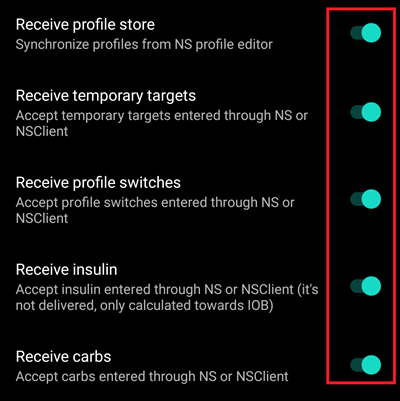
Keeping all the “Receive … from NS” options disabled makes sure no Nightscout change will be used by AAPS:

Accept changes from Nightscout
Enabling these options allows you to change AAPS settings through Nightscout, like profiles modifications and switch, temporary targets and adding carbs that will be taken into account by AAPS. They are only shown when client control and simple mode are off.
Note that insulin treatments will only be used for calculations like “Do not bolus, record only”.
Further security settings
Keep your phone up to date as described in safety first.
Manual Nightscout setup
It is assumed you already have a Nightscout site, if not visit the Nightscout page for full instructions on setup. The instructions below are then settings you will also need to add to your Nightscout site. Your Nightscout site needs to be at least version 15, so please check you are running the latest version otherwise you will get an error message on your AAPS app.
Add or edit the variables as follows:
ENABLE=careportal boluscalc food bwp cage sage iage iob cob basal dbsize pushover pump openapsDEVICESTATUS_ADVANCED=trueSHOW_FORECAST=openapsPUMP_FIELDS=reservoir battery clockVarious alarms can be set for monitoring the pump, battery % in particular is encouraged:
PUMP_WARN_BATT_P=51PUMP_URGENT_BATT_P=26
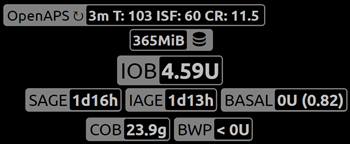
Save the modifications. Your Nightscout site should now allow you to display the pills. You can force default display adding them in
SHOW_PLUGINS.SHOW_PLUGINS=careportal boluscalc food bwp cage sage iage iob cob basal dbsize pushover pump openaps
Nightscout as a paid SaaS (Software as a Service)
Use the vendor web interface to set the variables. Contact the vendor support service if necessary.