Reinstalling AAPS with a new keystore
Every AAPS apk is signed with a keystore. An update only installs over your current AAPS if it is signed with the same keystore: all your settings and data are then kept. That’s why it is recommended to store the keystore and its password in a safe place.
If you try to install an apk signed with a different keystore than before, you will get an error message explaining that the installation failed!
When do you need to reinstall?
You need to uninstall and reinstall AAPS when your new apk is signed with a different keystore, for example:
You cannot find your old keystore or its password.
You created a new keystore, for example with Option 1 of the browser build or Create a new key in AAPS Builder.
You build on a new computer and did not copy your keystore to it.
If you still have your keystore, you don’t need this page: reuse it and update AAPS in place.
Before you start
Uninstalling AAPS deletes all its settings, your objectives and the current pump connection. You get them back by importing your settings file, so make sure you have a recent one.
The settings file does not contain your treatment and glucose history. If you upload to Nightscout, you can load it back after the reinstall (step 8).
You need your master password: the settings file is encrypted with it.
Omnipod and Medtrum users: read Tubeless pumps first. Your settings file must have been exported during the pod or patch you are wearing now.
If needed, set up your CGM/BG source receiver before you start.
Steps
The pictures show a move from AAPS 3.4 (steps 1 to 3) to AAPS 4 (steps 6 to 8). Other versions look slightly different.
1. Export your settings
Export your settings with the AAPS currently installed on your phone. See Settings Export for details.
In AAPS 3.4: open Maintenance and tap Export options. Under User Settings, tick Local Storage and tap OK.
Note: you can also use Cloud Storage to have a safety backup copy: that’s a good idea, but keep Local Storage for recovering settings quickly.

The button now reads Export settings (local). Tap it.

AAPS shows the name of the file it will create. Tap OK, type your master password and tap OK.

In AAPS 4: open Maintenance, select the Local chip next to Export settings and tap Export settings.
2. Copy the settings file off your phone
The file is in the preferences folder of your AAPS directory, named like 2026-10-13_222735_full.json. Copy or upload it to an external location (i.e. your computer, cloud storage service…). The file normally stays on your phone after the uninstall, but keep a copy elsewhere in case.
3. Synchronize with Nightscout
This step is not mandatory but recommended if you use DynISF: it will allow you to resume directly with the current settings instead of waiting 5 days to build necessary data for the plugin. NSClient V3 needs to be enabled and configured.
Make sure Nightscout has all your data before you uninstall.
Open NSClient, tap the Full synchronization button at the bottom of the screen, then OK.
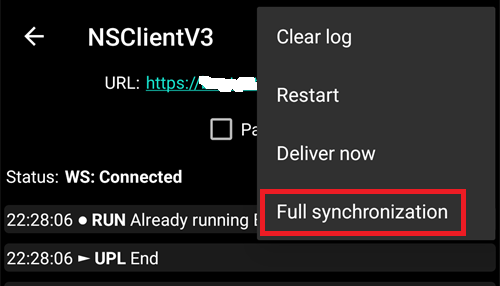
Note: the time necessary depends on your Nightscout hosting service.

AAPS then offers to clean up its database. OK removes data older than 3 months from the phone, which makes the synchronization much faster. Cancel synchronizes without cleaning up. The phone database is deleted when you uninstall anyway, so both are fine.

Leave AAPS running until the synchronization is finished.
4. Build the new apk
Build a new signed apk with your new keystore and transfer it to your phone.
5. Uninstall AAPS
In your phone’s Settings > Apps > AAPS, tap Uninstall and confirm with OK.

6. Install and start the new AAPS
Install the new apk and start AAPS. The setup wizard asks for the permissions AAPS needs: tap Grant for each of them. This also turns battery optimization off again.

For AAPS Directory, select the same AAPS folder as before (the one with the preferences folder in it), tap Use this folder and Allow.

When AAPS finds your exported settings, the setup wizard shows a Stored settings found screen where you can import them. You can also close the wizard and import from Maintenance as described below.
7. Import your settings
If the settings file is no longer on your phone, copy it back to the preferences folder of your AAPS directory.
Open the menu (☰) > Maintenance, select the Local chip next to Import settings and tap Import settings.

The list shows each file with its AAPS version and how old it is. Choose the file you exported in step 1.

You don’t need to set a master password in the new AAPS first. Type the master password you used for the export in Decryption password and tap Decrypt. File was encrypted with a different password is expected: the new AAPS doesn’t know your password yet. The import restores it with your other settings.

Tick Also replace pump settings: without it, your pump and its settings are not restored. Omnipod and Medtrum users: only tick it if the file was exported during your current pod or patch (see Tubeless pumps).

Tap Import, then OK to apply the settings and OK again on Settings applied.

8. Get your history back from Nightscout
Open the menu (☰) > Configuration > Communication and tap Open plugin under NSClientV3. Check that the status shows Connected. If it doesn’t, see Troubleshooting NSClient.

Tap the Full synchronization button at the bottom of the screen and OK. The database is new, so you can answer the cleanup question either way.

AAPS loads your data from Nightscout. The log shows Full sync finished when it is done.

9. Check and keep looping
Check that your pump is connected and your CGM values arrive, then keep on looping.
Afterwards
Always keep using your new keystore from now on, and store it with its password somewhere safe, off your phone. See Creating back-ups.