在您的Wear OS手表上安装AAPS
The instructions below apply to the AAPS Wear apk that you need to build. If you haven’t built it yet, see the linked guide here. When building, make sure to use the same keystore file that you used for the phone AAPS apk.
You can also use some of the information for the AAPSClient and PumpControl Wear apk. Each Wear app will communicate with it’s matching phone app. 例如:AAPSClient Wear应用可用于显示AAPSClient数据,而不是AAPS数据。
Wear OS版本与兼容性
Wear OS 3
使用Wear Installer 2、Easy Fire Tools(下文介绍)或ADB安装AAPS Wear APK。
AAPS Wear功能无限制。
Wear OS 4与升级至Wear OS 5的三星手表
例如:Galaxy Watch 4/5/6系列
使用Wear Installer 2安装AAPS Wear APK。
AAPS Wear功能无限制。
Android Wear OS 5
固件更新极可能导致AAPS表盘失效:请禁用手表自动更新。
出厂预装Wear OS 5的三星手表
例如:Galaxy Watch 7/Ultra系列
Android Wear OS 5
安装AAPS表盘需通过Wear Installer 2完成。
若意外切换至其他表盘,需重复上述安装流程。
无法修改专属表盘参数(如暗色模式、表盘分隔线等)。
固件更新极可能导致AAPS表盘失效:请禁用手表自动更新。
可考虑使用GlucoDataHandler并配合复杂功能组件。
搭载Wear OS 5的Pixel手表
不兼容AAPS表盘。 建议使用GlucoDataHandler搭配复杂功能组件。
如何在Samsung Galaxy 4智能手表上设置AAPS
本节假设您完全不了解智能手表,并为您提供有关热门手表Galaxy Watch 4的基本指导,随后是逐步在手表上安装AAPS的指南。
_本指南假设您要设置的Samsung Galaxy手表运行的是Wear OS版本3或更低版本。 _ 如果您要设置运行Wear OS 4/OneUI 5或更高版本的手表,您需要使用新的ADB配对过程,这将在您手机上的Samsung软件中解释,并将在适当时候在此处更新。
这里是针对Galaxy Watch 5和Galaxy Watch 6的基本设置指南。
智能手表基本操作
在根据上面的视频完成手表的基本设置后,请转到手机上的Play商店并下载以下应用:“Galaxy Wearable”、“Samsung”以及“Easy Fire tools”或“Wear Installer 2”。
YouTube上有许多第三方视频可以帮助您熟悉新智能手表,例如:
https://www.youtube.com/watch?v=tSVkqWNmO2c
“Galaxy Wearable”应用中也包含有说明手册部分。 在手机上打开Galaxy Wearable,搜索手表,尝试将手表与手机配对。 根据您的版本,这可能会提示您从Play商店安装进一步的第三方应用“galaxy watch 4 plugin”(下载需要一些时间)。 在手机上安装此应用,然后再次尝试在Wearable应用中配对手表和手机。 完成一系列菜单并勾选各种偏好设置。
设置Samsung账户
您需要确保用于设置Samsung账户的电子邮件账户的出生日期表明用户年满13岁,否则Samsung权限将非常难以批准。 如果您为未满13岁的孩子提供了一个Gmail账户,并且正在使用该电子邮件地址,则不能简单地将其更改为成人账户。 一种解决方法是修改当前出生日期,使其当前年龄为12岁363天。 第二天,账户将转换为成人账户,您可以继续设置Samsung账户。
将AAPS Wear应用传输到您的AAPS手机上。
您可以通过以下方式之一将Wear.apk从Android Studio加载到手机上:
a) 使用USB电缆将AAPS Wear apk文件放到手机上,然后“侧载”到手表上。 将Wear.apk通过USB传输到手机的下载文件夹中;或
b) 将Wear.apk从Android Studio剪切并粘贴到您的Gdrive上。
To side-load AAPS onto the watch You can use either: 1) Wear Installer 2 2) Easy Fire tools 3) Android Debug Bridge (ADB) Here we recommend Wear Installer 2, because the instructions and process in the video are so clear and well-explained. If Wear Installer 2 does not work for you try via
Using Wear Installer 2 to side-load AAPS Wear from the phone onto the watch

Wear Installer 2由Malcolm Bryant开发,可以从Google Play下载到您的手机上,并可用于将AAPS Wear应用侧载到手表上。 该应用包含一个方便的“如何侧载”的视频。
这提供了所有必要的详细信息(最好在单独的设备上打开视频,以便在设置手机的同时观看)。
如视频中所述,完成后,请关闭手表上的ADB调试,以避免耗尽智能手表的电池。
Wear OS 5以下设备可选方案:
Use Easy Fire tools to side-load the AAPS wear on the watch
Download Easy Fire Tools from the Play Store onto phone
Make yourself a developer in the watch (once set up and connected to phone):
Go to settings >about watch (bottom option) -> software info -> software version.
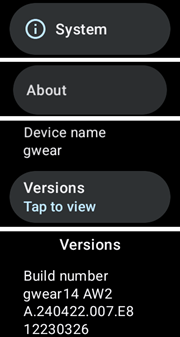
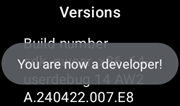
快速点击“软件版本”,直到出现通知,表明手表现在处于“开发者模式”。
Return to the top of settings menu, scroll to the bottom and see “developer options” below “about watch”.
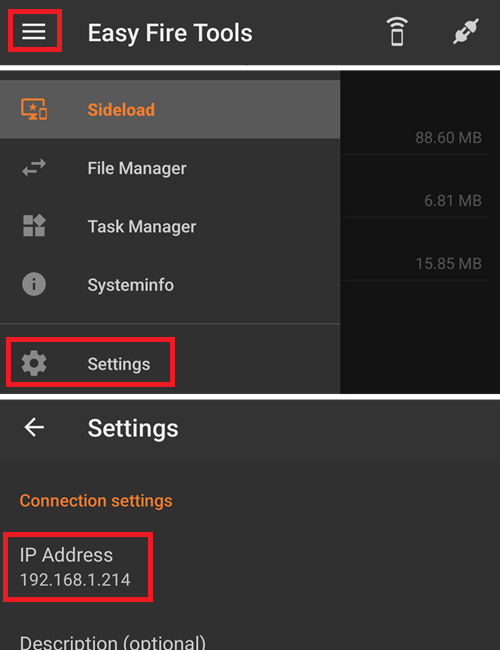
在“开发者选项”中,打开“ADB调试”和“无线调试”。 后者选项将显示手表的IP地址,该地址的最后两位数字每次手表与新手机配对时都会更改。 It will be something like: 192.168.1.214.5555 (ignore the last 4 digits). 请注意,此地址的最后两位数字(此处为“20”)在每次您为AAPS更换新手机时都会更改。
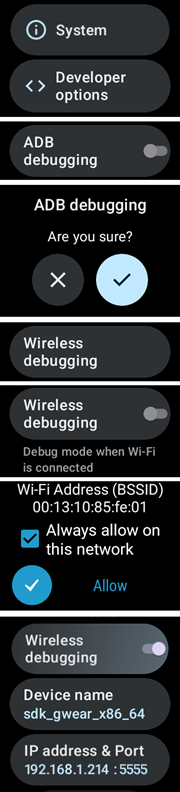
STEP 3) Enter IP address e.g. 192.168.1.214 into Easy Fire tools on the phone (go into the left hamburger, settings and enter the IP address).
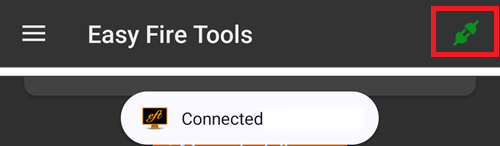
然后点击右上角的插头插座图标。 It will turn green when connected.
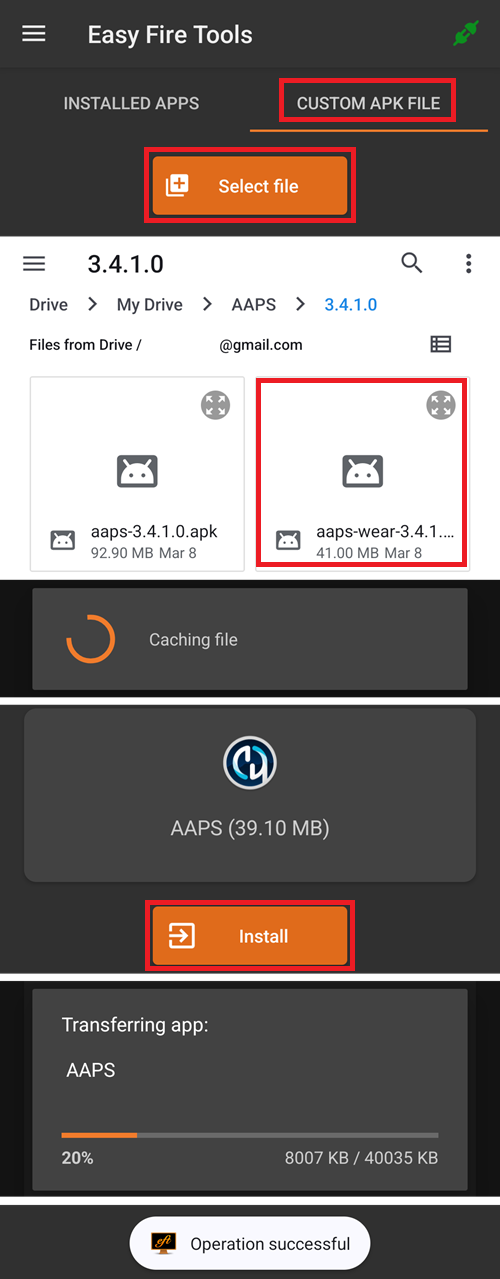
STEP 4) Follow the instructions here to side-load (i.e. transfer) aaps-wear.apk onto the smartwatch using Easy Fire tools
Using the terminal
Connect your smartwatch and computer to the same Wi-Fi network.
To install ADB download it from: https://developer.android.com/tools/releases/platform-tools
Open a terminal.
For Windows, create a new folder named
adbunder your diskC:. Open theplatform-tools-latest-windows.zipfile you downloaded above. Copy all files insideplatform-toolstoC:\adband open this folder with a command prompt (right click and Open in Terminal). Type the command below to set the path to the folder where ADB is located:setx PATH "%PATH%;C:\adb"For Mac instead of installing manually you can use homebrew:
brew install android-platform-tools
On the watch:
Go to Settings → About watch → Software Information
Tap Software version 7 times until you see Developer mode enabled.
Go to Settings → Developer options. Enable ADB debugging
Go to Settings → Developer options → Wireless debugging → Pair new device
You will see a Wi-Fi paring code and IP address and port appearing: 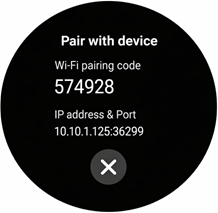
In the terminal:
adb pair ipaddress:portE.g.adb pair 10.10.1.125:36299You will be asked for the pairing code. Enter it.
You will see a response:
Successfully paired to 10.10.1.125:36299 [guid=adb-RXXXW20LMKJY-eh5zBj]In the terminal type:
adb devices.
You should see something like:
List of devices attached
10.10.1.125:36299 offline
adb-RFAW20LMKJY-eh5zBj._adb-tls-connect._tcp deviceNow go to the folder on your computer where the Wear apk is and type
adb install wear-full.apk
with wear.apk replaced by the name of your apk file.You will see:
Performing Streamed Install
Success
Wear OS 5通用故障排查
请勿使用Wi-Fi热点共享。 该方式无法使用。
无需在手机上启用ADB调试(仅需在手表端开启)。 请在手机设置中关闭ADB调试功能。
确保设备处于同一局域网(避免使用访客网络)
For GW7 you need to install using Wear Installer 2 as it gives you the option to select the AAPS (Custom) watchface on installation.
请确保手表和手机处于同一Wi-Fi网络下, 特别注意使用Wi-Fi中继器或接入点可能引发连接问题。
确保设备靠近主路由器,必要时重启设备。
配对流程:
手表端:记录无线调试显示的IP地址
Wear Installer:输入IP地址
选择”新配对”,记录配对码与端口号
Wear Installer:输入”配对码+空格+端口号”。
Wear Installer应显示”配对成功”。 若未显示,请退出Wear Installer后重新尝试。
完成配对后即可安装AAPS wear apk:
退出/关闭后重新启动Wear Installer。
进行无线调试时,请记录IP地址与端口号,并确保在Wear Installer中核对并输入该IP地址及端口号。
注:此端口号与配对所用端口号不同!
从AAPS设置手表与手机的连接
The final step is to configure AAPS on the phone to interact with Wear.apk on the watch. 为此,请在配置构建器中启用Wear插件:
打开手机上的AAPS
在左侧的汉堡菜单中选择>配置构建器
Tick for Wear selection under Synchronization
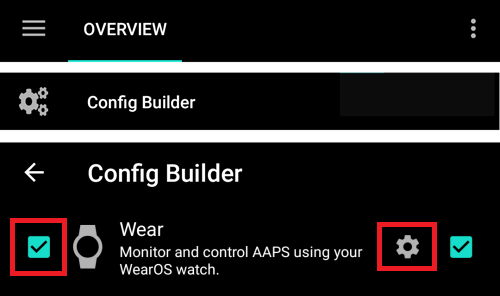
要更改为不同的AAPS表盘,请按手表的主屏幕,它将转到“自定义”。 然后向右滑动,直到您看到所有AAPS表盘。
如果已成功将AAPS Wear.apk侧载到智能手表上,它将如下所示:
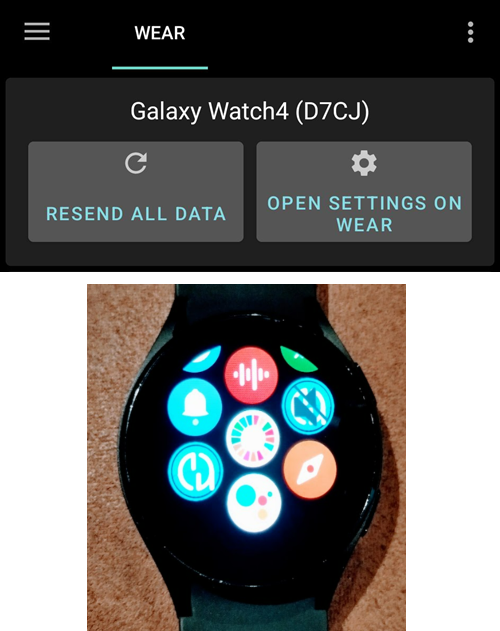
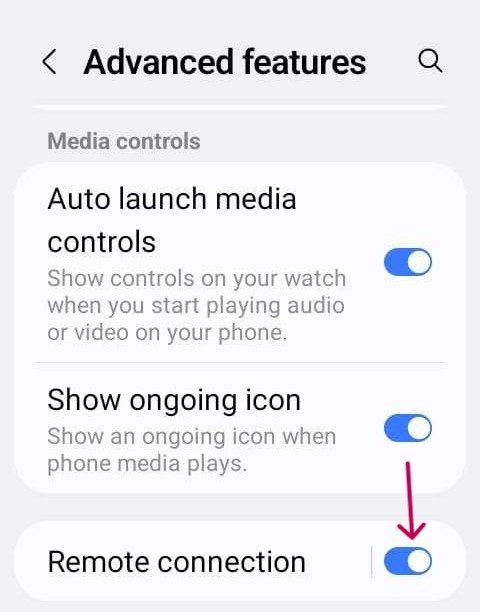
For certain smart watches, like the Samsung Galaxy, ‘Remote Connection’ under Samsung Galaxy’s Advanced Features must be switched on to use Wear.apk & AAPS remotely via wifi.
排查AAPS手表与AAPS手机之间的通信问题
如果EasyFire tools无法连接或您收到“授权失败”>检查IP地址是否正确输入。
检查智能手表是否已连接到互联网(而不仅仅是通过蓝牙连接到手机)。
检查AAPS手机和智能手表是否已在Samsung应用中配对或链接。
重启手机和智能手表(即关闭并重新打开)也可能有所帮助。
假设您已成功将Wear.apk下载到手机上,但未收到任何BG数据,_请检查_您是否已将正确的AAPS apk版本侧载到手表上。 如果您的AAPS wear.apk版本列为以下任一项: a)“wear-AAPSClient-release”; b)‘wear-full-release.aab’;或 c)标题中出现“debug”, 则您在构建过程中未选择正确的Wear OS apk版本。
检查您的路由器是否将设备彼此隔离。
更多故障排除提示可在此处找到here
在您的WearOS手表上更改为AAPS表盘
在标准构建的AAPS Wear OS APK中有多个表盘可供选择。 一旦您在手表上安装了AAPS Wear APK,它们将可用。 以下是选择表盘的步骤:
在您的手表上(假设是WearOS),长按当前表盘以调出表盘选择器屏幕,并一直向右滚动,直到您看到“添加表盘”按钮并选择它
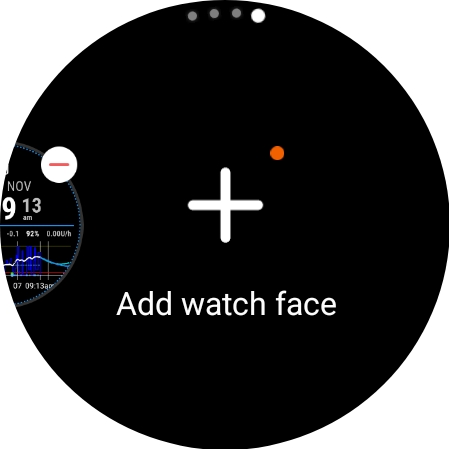
滚动到列表底部,直到您看到“已下载”部分,找到“AAPS(自定义)”并点击图像中间部分将其添加到当前表盘的短列表中。 不用担心“AAPS(自定义)”表盘的当前外观,我们将在下一步中选择您喜欢的皮肤。
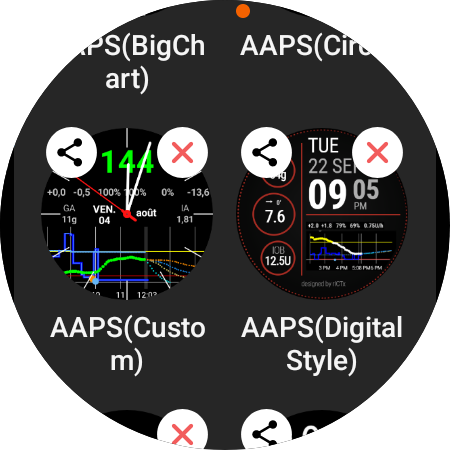
现在,在手机上打开AAPS,并转到Wear插件(如果您在当前的插件中看不到它,请在配置构建器(在“同步”下)中启用它)。
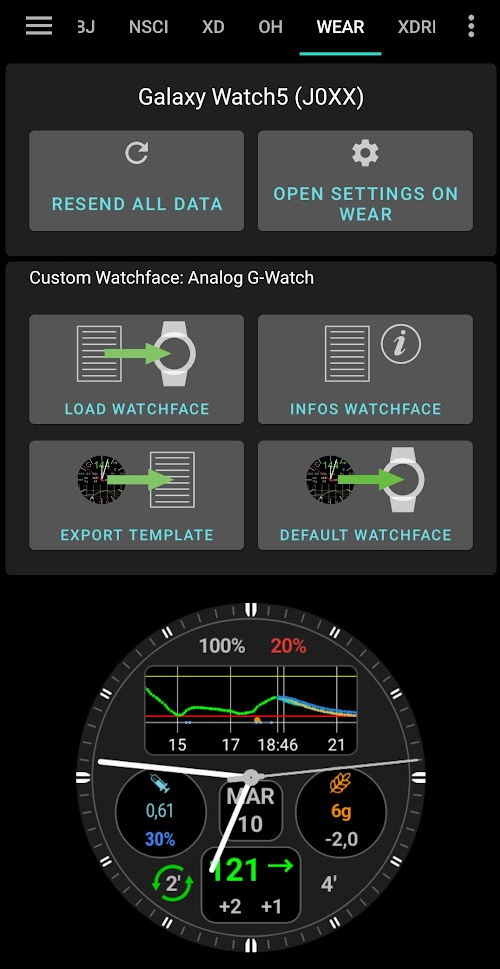
点击“加载表盘”按钮,并选择你喜欢的表盘。
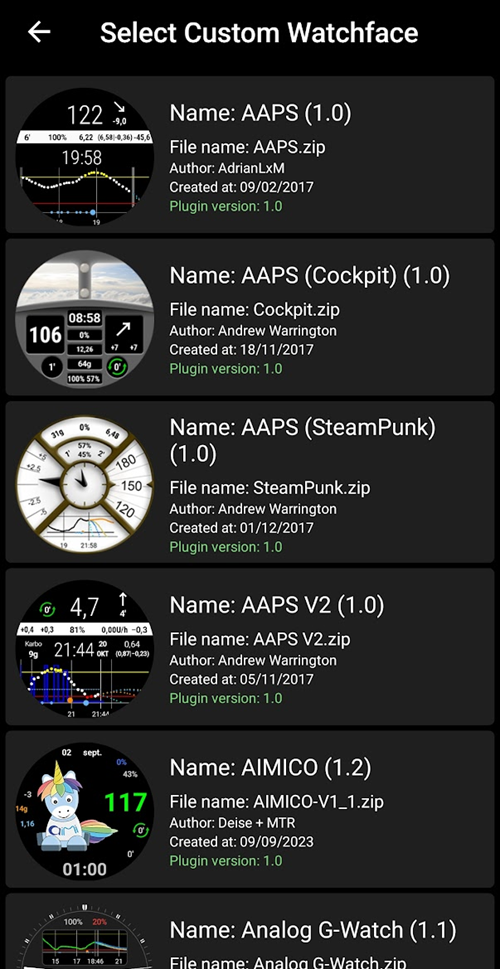
检查您的手表,“AAPS(自定义)”表盘现在应该显示您选择的皮肤。 给它几秒钟刷新。 您现在可以通过长按表盘,然后点击表盘图像上的“自定义”按钮来自定义小部件等。
APSv2 watchface - Legend
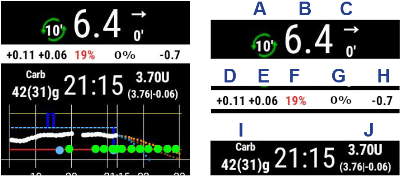
A - 上次闭环运行以来的时间
B - 持续葡萄糖监测(CGM)读数
C - 自上次CGM读数以来的分钟数
D - 与上次CGM读数相比的变化(以mmol或mg/dl为单位)
E - 过去15分钟内CGM读数的平均变化
F - 手机电量
G - 基础率(标准速率期间以U/h显示,临时基础率(TBR)期间以%显示)
H - 血糖互动(BGI)-> 仅基于胰岛素活性,血糖“应该”上升或下降的程度。
I - 碳水化合物(活性碳水化合物|未来的e-carbs)
J - 活性胰岛素(来自大剂量|来自基础量)