Omnipod DASH
These instructions are for configuring the Omnipod DASH generation pump (NOT Omnipod Eros), available in AAPS from version 3.0.
Omnipod DASH 规格说明
以下是Omnipod DASH(简称”DASH”)的规格说明及其与Omnipod EROS(简称”EROS”)的主要区别:
The DASH pods are identified by a blue needle cap (EROS has a clear needle cap). 除标识外,两种储药器的物理尺寸完全一致。
DASH 无需蓝牙连接/桥接设备(不需要 RileyLink、OrangeLink 或 EmaLink)。
The DASH’s Bluetooth connection is used only when sending a command (e.g a Bolus), and disconnects right after issuing the command.
DASH 彻底消除了”无法连接桥接设备/储药器”的报错。
AAPS 将等待储药器可连接状态时发送指令。
在储药器激活时,AAPS 将自动搜寻并连接新的 DASH 储药器。
Expected range from phone: 5-10 meters (YMMV).
Omnipod DASH known AAPS constraints/issues
Android 16 requires AAPS version 3.3.2.1 or later.
General advice is to run AAPS on Android 14 or 16. Android 15 has many reported issues from the community. However, if you do run on Android 15 you will likely need to enable Bluetooth Bonding to successfully activate and use Pods, see General Troubleshooting for more info on the Bonding settings.
Too frequent basal updates may cause basal insulin delivery problems with Omnipod Dash. When using SMB, limit the interval to 5 minutes minimum to avoid this issue.
Dash only supports basal rate in 0.05 U/h steps. If you try to set basal with 0.01 steps in your AAPS profile, AAPS will not give a warning even though the pod will round up the rate into 0.05 steps. If you view POD MGMT/Pod History it will display that 0.05 basal was set. This also means the lowest basal rate allowed by the DASH in AAPS is 0.05U/h.
The activation status of a Pod is stored in the settings file, if you export a settings file with an active pod. Then change to a new pod, then restore the settings from your previous export you will have now restored the old pod activation and removed the new pod activation. This is why we recommend to export settings after each pod activation to allow a restore of that pods activation state if something happens to your rig.
When setting a new basal profile, DASH will suspend delivery before setting the new basal Profile. If there is a communication interruption or error, the basal profile won’t automatically re-start. See section Resuming Insulin Delivery for details.
If alerts are configured, and the pod is about to expire, the pod will keep beeping until alerts are silenced, see Silencing Pod Alerts for details.
There are a number of known issues with Bluetooth which can cause pod activation problems. See Bluetooth Troubleshooting for the known issue and solutions to these problems.
硬件/软件要求
Omnipod DASH is identified by the blue needle cap.
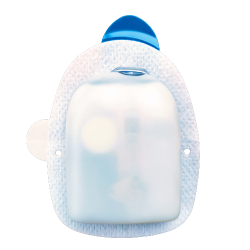
A Compatible Android phone with a Bluetooth Low Energy (BLE) (see Phones for more info), additionally the following information will help guide you on other key considerations around successfully activating and using the DASH on a compatible phone:
The AAPS Omnipod Dash driver connects with the DASH Pod using Bluetooth.
AAPS will automatically establish a new Bluetooth connection to the Pod every time it needs to send a command (e.g a Bolus), after sending the command the Bluetooth connection is immediately disconnected.注意:
The Bluetooth connection can be interrupted/disturbed by other Bluetooth devices linked to the phone that is running AAPS, like earbuds etc… Devices like this can cause connection errors or pod activation issues on some models of phones. It’s a good idea to review the tested hardware setups list for known working configurations before committing to a new rig built around Omnipod DASH.
There are a number of known issues with Bluetooth which can cause pod activation problems (See Troubleshooting for advice on other Bluetooth issues) specifically the Bluetooth related issues section.
For Android 15 or below: You MUST use Version 3.0 or newer of AAPS using the Build APK instructions, however it’s advisable to run the latest released version.
For Android 16: you MUST use Version 3.3.2.1 or newer of AAPS using the Build APK instructions, due to Android 16 changing how its Bluetooth works. Any version earlier than 3.3.2.1 will likely cause pod failures and/or activation issues.
A supported Continuous Glucose Monitor (CGM)
The instructions below explain how to activate a new pod session using AAPS. You should wait for your current Pod to be close expiry, as you will need to activate a new Pod with AAPS. Once a pod is de-activated it cannot be reused/re-activated, the de-activation is final.
开始前的准备工作
Ensure you have read and understand this whole guide, have read and understand the Before You Begin section, as well as Omnipod and AAPS Constraints and Issues to avoid running into a known problem.
SAFETY FIRST - You SHOULD NOT try to connect AAPS to a pod for the first time without having access to all of the following:
Extra pods (3 or more spare)
Spare Insulin and MDI equipment
A working Omnipod PDM (In case AAPS fails)
Supported Phones are a must! (See Hardware/Software Requirements)
Correct version of AAPS built and installed
Your Omnipod Dash PDM will become redundant after the AAPS Dash driver activates your pod.
Before using AAPS you or your care giver would have had to manage the Pod using the Omnipod PDM (or in some regions a Phone app) to send commands to your DASH (e.g a Bolus).
The DASH can only facilitate a single Bluetooth device (e.g PDM or Phone) connection to manage and send commands.
The device that successfully activates the pod is the only device allowed to communicate with that Pod from that point forward. This means that once you activate a DASH with your Android phone using AAPS, you will no longer be able to use your PDM with that pod! For the time that Pod is active the AAPS Dash driver running on your Android phone is now the new PDM for your pod.
DO NOT Throw away your PDM! It is recommended to keep it around as a backup and for emergencies, for instance when your phone gets lost or AAPS is not working correctly.
Your pod WILL NOT stop delivering insulin when it is not connected to AAPS.
Default basal rates are programmed on the pod on activation as defined in the current active Profile.
As long as AAPS is operational it will send basal rate adjustment commands that run for a maximum of 120 minutes.
When for some reason the pod does not receive any new commands (for instance because communication was lost due to Pod ➜ phone distance) the pod will automatically fall back to default basal rates as defined in your Profile.
AAPS Profile(s) do not support 30 minute basal rate time frames
If you are new to AAPS and are setting up your basal rate Profile for the first time, please be aware that basal rates starting on a half-hour basis are not supported. For example, on your Omnipod PDM, if you have a basal rate of 1.1 units which starts at 09:30 and has a duration of 2 hours ending at 11:30, it is not possible replicate this exact basil Profile in AAPS.
You will need to change this 1.1 unit basal rate to a time range of either 9:00-11:00 or 10:00-12:00. Even though the DASH hardware itself supports the 30 minute basal rate Profile increments, AAPS does NOT support this feature.
0U/h Profile basal rates are NOT supported in AAPS
While the DASH does support a zero basal rate, AAPS uses multiples of the user’s Profile basal rate to determine automated treatment; it cannot function with a zero basal rate.
Instead a temporary zero basal rate can be achieved through the “Disconnect pump” function, or through a combination of Disable Loop/Temp Basal Rate or Suspend Loop/Temp Basal Rate.
NOTE: The lowest basal rate allowed by the DASH in AAPS is 0.05U/h.
在AAPS中选择Dash
There are two available options to configure Omnipod in AAPS:
Option 1: New installations
When installing AAPS for the first time, the Setup Wizard will guide new users through key features and installation requirements for AAPS.
Select “DASH” when you reach Pump selection.

When in doubt you can also select “Virtual Pump” and select “DASH” later, after setting up AAPS (See Option 2).
Option 2: The Config Builder
在现有安装中,您可以通过配置构建器选择DASH泵:
On the top-left hand corner hamburger menu select Config Builder (1) ➜ Pump ➜ Dash ➜ Settings Gear (3) by selecting the radio button (2) titled Dash.
勾选设置齿轮图标(3)旁的复选框(4)后,DASH菜单将作为标签页显示在AAPS界面中,标题为DASH。 勾选此选项后,您在使用AAPS时将能更便捷地调用DASH指令功能。
NOTE: A faster way to access the Dash settings can be found below in the DASH settings section of this document.
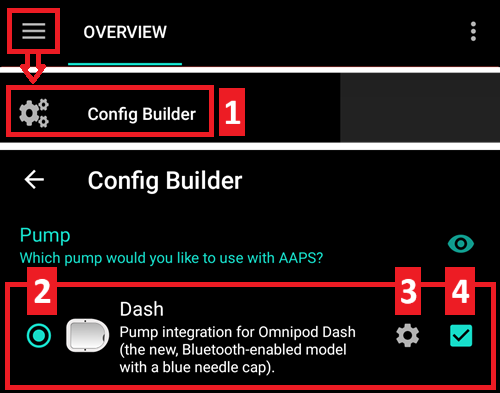
Verification of Omnipod Driver Selection
To verify that you have selected the DASH in AAPS, if you have checked the box (4), swipe to the left from the Overview tab, where you will now see a DASH tab on AAPS. 若未勾选此选项,您仍可在左上角汉堡菜单中找到DASH标签页。
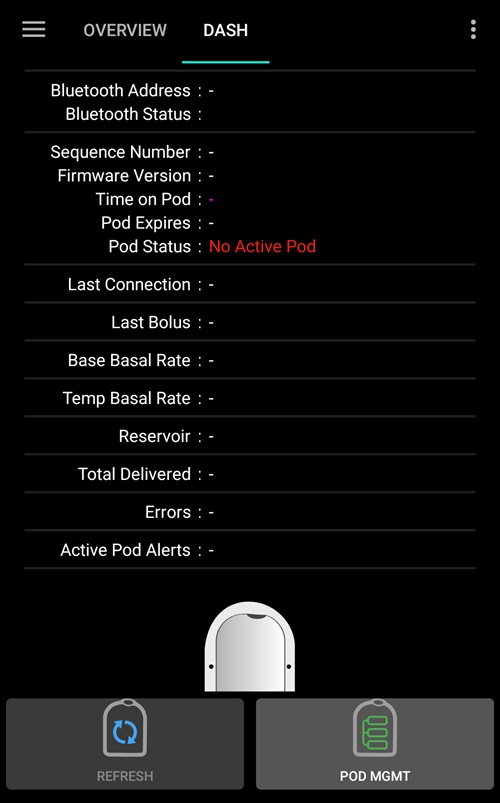
Dash配置
Swipe left to the DASH tab where you will be able to manage all pod functions (some of these functions are not enabled or visible without an active pod session):
 “刷新”(刷新储药器连接状态,并可在储药器发出警报时进行消音操作)
 “储药器管理”(激活、停用、测试蜂鸣音、查看使用记录)
Activate Pod
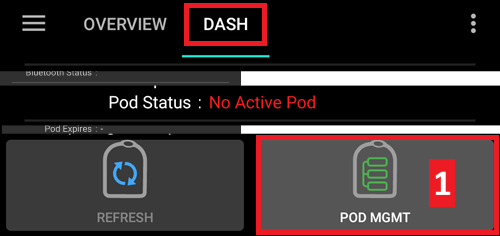
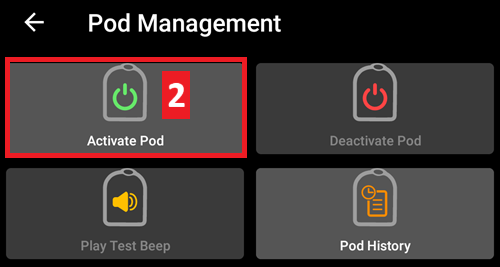
请进入DASH标签页,点击储药器管理(1)按钮,然后选择激活储药器(2)。
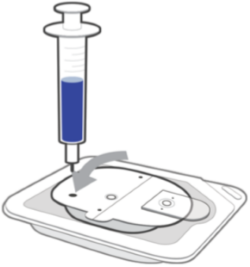
此时将显示填充储药器界面。 Fill a new pod with at least 80 units of insulin and listen for two beeps indicating that the pod is ready to be primed.
NOTE: When calculating the total amount of insulin you need for 3 days, please take into account that priming the pod will use about 3-10 units.
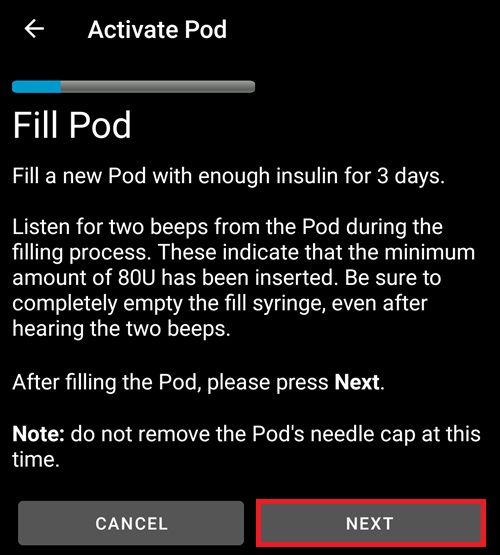
确保新储药器与运行AAPS的手机保持近距离,然后点击下一步按钮。
注意:若弹出错误提示_”未找到可用的待激活储药器”_(这种情况可能发生),请勿惊慌。 点击重试*按钮。 在大多数情况下,激活程序将能继续顺利完成。*
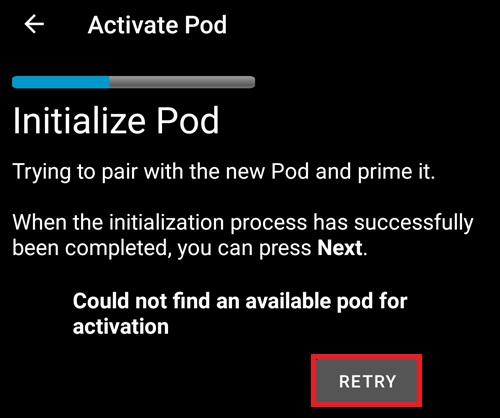
On the Initialize Pod screen, the pod will begin priming (you will hear a click followed by a series of ticking sounds as the pod primes itself).
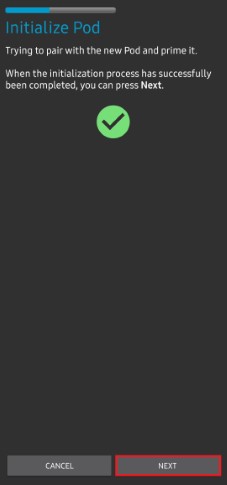
A green checkmark will be shown upon successful priming, and the Next button will become enabled. 点击下一步按钮完成储药器初始化,随后将显示佩戴储药器界面。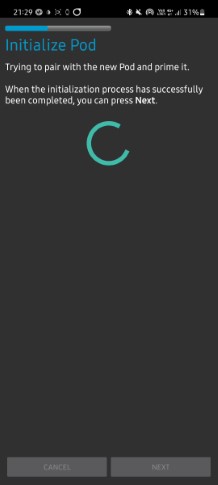
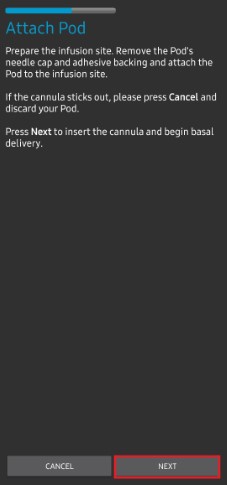
接下来,请准备好输注部位以佩戴新储药器。 洗手消毒以避免感染风险。 Clean the infusion site by either using soap and water or an alcohol wipe to disinfect and let the skin air dry completely before proceeding.
If you get skin irritation from the adhesive consider using a Barrier Wipe or Barrier Spray.移除储药器的蓝色塑料针头保护帽。 If you see something that sticks out of the pod or it looks unusual, STOP the process and start with a new pod. If everything looks OK, proceed to take off the white paper backing from the adhesive and stick the pod to the selected site on your body.
操作完成后,点击下一步按钮。
此时将弹出佩戴储药器对话框。 click on the OK button ONLY if you are ready to deploy the cannula!
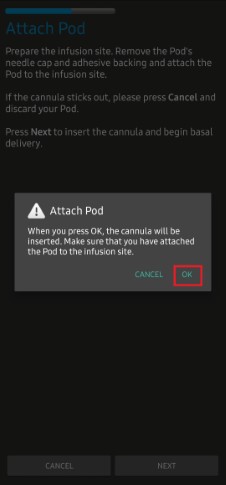
点击确定后,DASH可能需要一些时间才能响应并插入导管(最长等待1-2分钟)。 Be patient!
NOTE: Before the cannula is inserted, it is good practice to pinch the skin near the cannula insertion point. 这能确保针头顺利插入,并降低导管堵塞的发生概率。

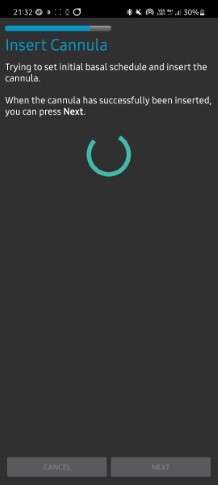
A green checkmark is shown on the screen, and the Next button becomes available to select upon successful cannula insertion.
Click on the Next button.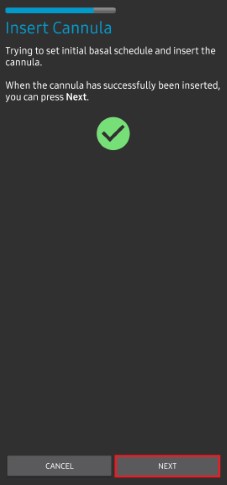
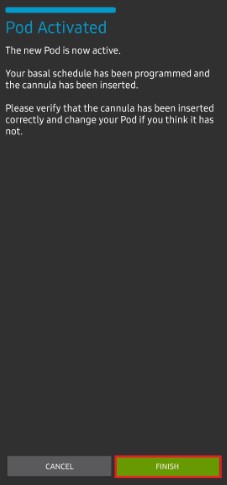
此时将显示储药器已激活界面。
点击绿色完成按钮。
恭喜! 您已成功开启新储药器使用周期。
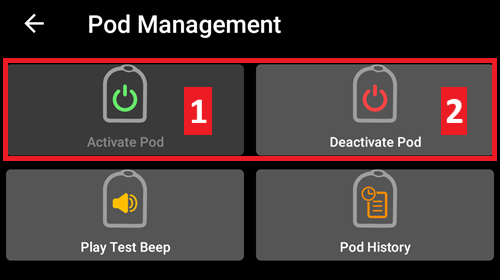
此时储药器管理菜单界面应显示:**激活储药器(1)按钮不可用,而停用储药器(2)**按钮可用。 这是因为当前已有储药器处于激活状态,必须首先停用当前储药器才能激活新储药器。
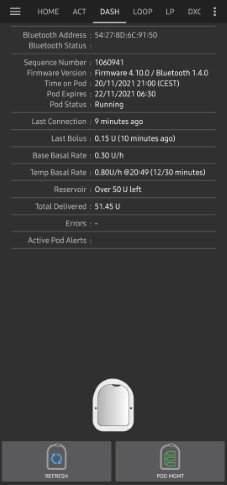
点击手机返回键回到DASH标签页,该界面现在将显示当前使用中储药器的信息,包括基础率设定值、储药器剩余量、已输注胰岛素量、储药器报错及警报等内容。
NOTE: For more details on the information displayed go to the DASH Tab section of this document.
NOTE: It is good practice to export settings AFTER activating the pod. Settings should be exported after each pod change and once a month, ensure you copy the exported settings file to a cloud storage location (e.g. Google Drive) or somewhere off your phone in case you loose your phone (see Export settings).
Deactivate Pod
Under normal circumstances, the expected lifetime of a pod is three days (72 hours) and an additional 8 hours after the pod expiration warning for a total of 80 hours of total pod usage.
要停用储药器(无论是因到期还是故障):
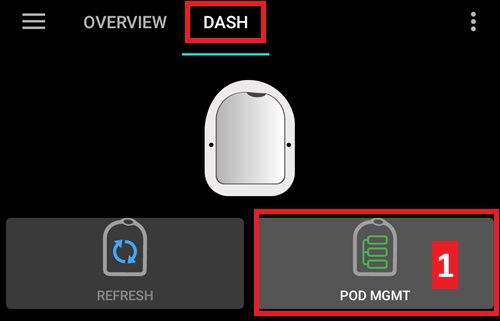
Go to the DASH tab, click on the POD MGMT (1) button, on the Pod Management screen click on the Deactivate Pod (2) button.
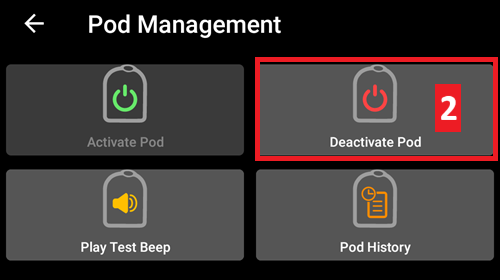
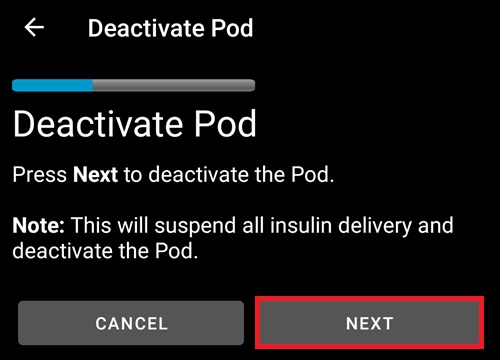
在停用储药器界面,点击下一步按钮开始停用流程。
储药器将发出确认提示音,表示停用成功。
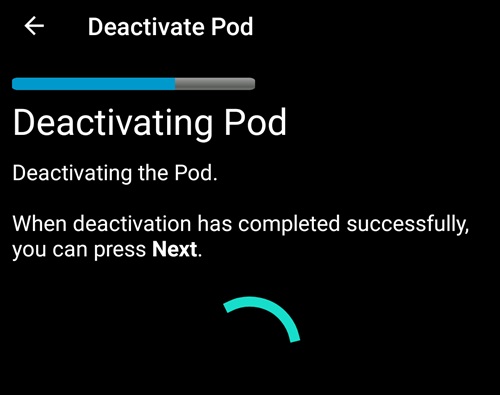
A green checkmark will be displayed upon successful deactivation. 点击下一步按钮显示储药器已停用界面。
当前使用周期已终止,您现在可以移除储药器。
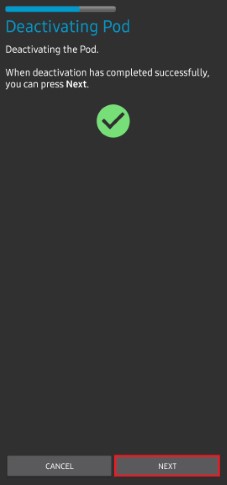
点击绿色按钮返回储药器管理界面。
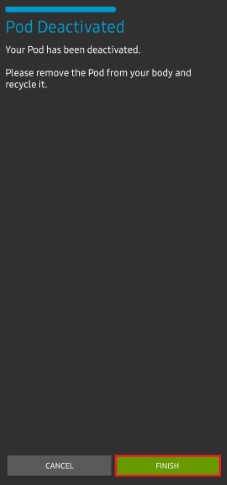
您现在处于储药器管理菜单界面,按手机返回键可回到DASH标签页。
请确认储药器状态:字段显示无使用中储药器的提示信息。
Resuming Insulin Delivery
NOTE: During Profile Switches, like when using the PDM, AAPS must suspend delivery on the Pod before setting the new basal Profile. If communication fails between the suspend and resume commands, then delivery can stay suspended, Read Delivery suspended in the troubleshooting section for more details.
When insulin delivery is suspended you will need to issue a command to instruct the active, currently suspended pod to resume insulin delivery. 指令成功执行后,系统将根据当前激活的基础配置文件,按当前时间对应的基础率恢复胰岛素正常输注。 储药器将重新接受大剂量注射、临时基础率和超微大剂量指令。
请进入DASH标签页,确认储药器状态(1)字段显示为已暂停,然后点击**恢复输注(2)按钮启动流程,指示当前储药器恢复正常胰岛素输注。 恢复输注信息将显示在储药器状态(3)**字段中。
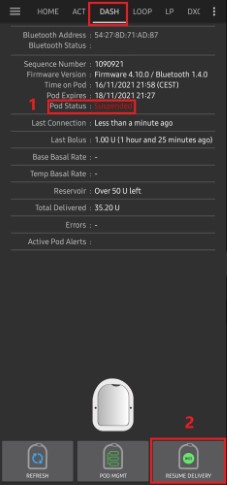
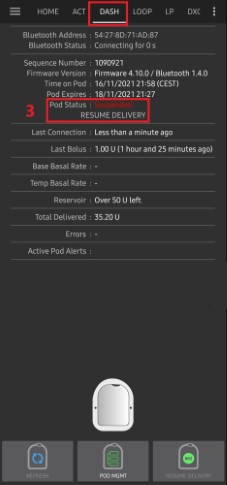
当恢复输注指令执行成功时,确认对话框将显示胰岛素输注已恢复的信息。 点击确定进行确认并继续操作。
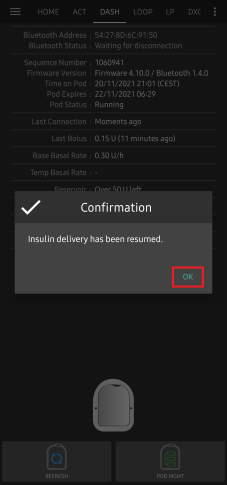
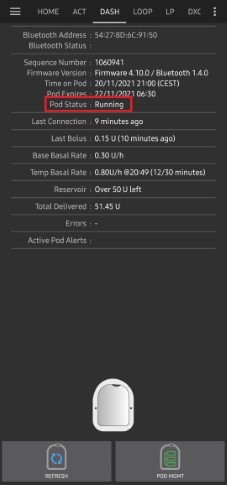
DASH标签页将更新储药器状态(1)字段,显示为运行中,且恢复输注按钮不再显示。
Silencing Pod Alerts
以下流程将说明当储药器使用时间接近72小时(3天)有效期前的警告时限时,如何确认并消除储药器提示音。 该警告时限由关机前小时数的Dash警报设置定义。 储药器最长使用时限为80小时(3天8小时),但Insulet建议不要超过72小时(3天)的标准周期。
NOTE: The SILENCE ALERTS (3) button is only available on the DASH tab when the pod expiration or low reservoir alert has been triggered. If the SILENCE ALERTS button is not visible and you hear beep sounds from the pod, try to ‘Refresh pod status’.
When the defined Hours before shutdown warning time limit is reached, the pod will issue warning beeps to inform you that it is approaching its expiration time and a pod change will be required soon.
You can verify this on the DASH tab, the Pod expires: (1) field will show the exact time the pod will expire (72 hours after activation), and the text will turn red after this time has passed.
Under the Active Pod alerts (2) field the status message Pod will expire soon is displayed. 同时会触发显示**静音警报(3)**按钮。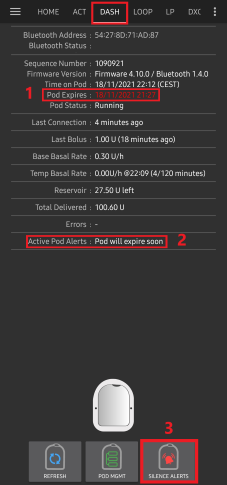
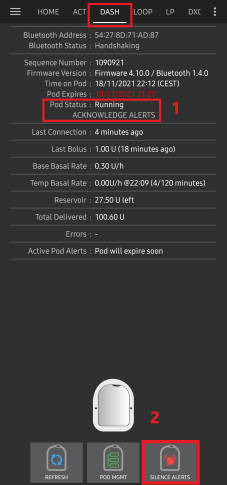
Go to the DASH tab and press the SILENCE ALERTS (2) button. AAPS向储药器发送指令以停用到期警告提示音,并将储药器状态(1)字段更新为已确认警报。
当警报成功停用后,使用中的储药器会发出2声提示音,同时确认对话框将显示警报已静音的信息。 点击确定按钮确认并关闭对话框。
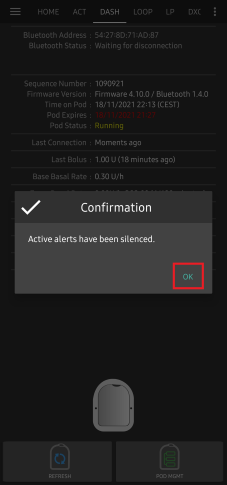
请进入DASH标签页。 在使用中储药器警报字段下,警告信息不再显示,且使用中的储药器将不再发出到期警告提示音。
View Pod History
本节说明如何查看使用中储药器的历史记录,并按不同操作类别进行筛选。 储药器历史工具可让您查看当前使用中储药器在其3天(72-80小时)使用周期内执行的操作及结果记录。
此功能有助于核验已发送至储药器的大剂量注射、临时基础率和基础率指令。 其余分类有助于故障排除,并确定导致故障发生的事件顺序。
NOTE: Only the last command can be uncertain. New commands will not be sent until the last ‘uncertain’ command becomes ‘confirmed’ or ‘denied’. The way to ‘fix’ uncertain commands is to ‘refresh pod status’.
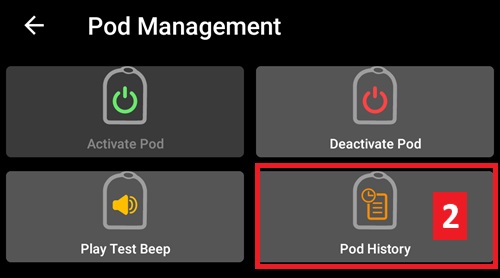
请进入DASH标签页,点击储药器管理(1)按钮进入储药器管理菜单,然后点击**储药器历史(2)**按钮访问历史记录界面。
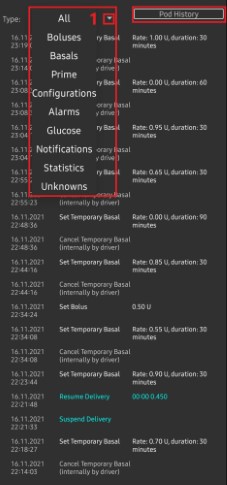
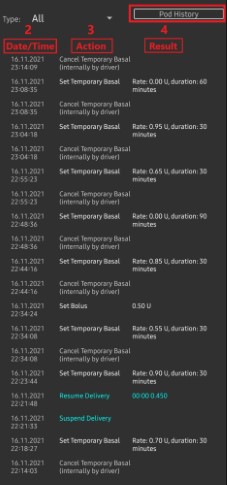
在储药器历史界面,默认显示全部(1)类别,按时间倒序排列所有储药器操作(3)及其结果(4)的日期和时间(2)。 按手机返回键2次可返回主AAPS界面的DASH标签页。
DASH标签页
以下说明主AAPS界面中DASH标签页的布局及图标与状态字段的含义。
NOTE: If any message in the DASH tab status fields report (uncertain), then you will need to press the Refresh button to clear it and refresh the pod status.
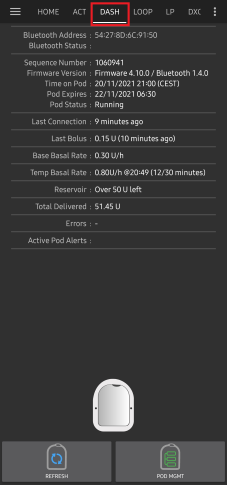
Fields
**蓝牙地址:**显示当前连接的储药器的蓝牙地址。
Bluetooth Status: Displays the current connection status.
**序列号:**显示当前使用中储药器的序列号。
**固件版本:**显示当前连接设备的固件版本号。
**储药器时间:**显示储药器当前时间。
**储药器状态:**显示储药器当前状态。
**最后连接时间:**显示最近一次与储药器通信的时间。
刚刚 - 指20秒内的时间。
不到一分钟前 - 超过20秒但不足60秒。
1分钟前 - 超过60秒但不足120秒(2分钟)
XX分钟前 - 超过2分钟,具体时间由XX值确定
**最近一次大剂量:**显示最近发送给使用中储药器的大剂量注射量,括号内为注射发生的时间。
**基础基础率:**显示当前时间根据基础率配置文件设定的基础输注速率。
**临时基础率:**以下列格式显示当前运行的临时基础率:
{单位/小时} @{临时基础率开始时间} ({已运行分钟数}/{临时基础率总运行分钟数})
Example:* 0.00U/h @18:25 ( 90/120 minutes)
**储药量:**当储药器剩余药量超过50单位时,显示”50+单位剩余”。 低于50单位时,将显示精确剩余药量。
**总输注量:**显示储药器已输送的胰岛素总量(单位)。 该数值包含激活储药器和管路填充所消耗的胰岛素。
**错误信息:**显示最近发生的错误。 Review the Pod history and log files for past errors and more detailed information.
活动储药器警报: 保留用于当前活动储药器上正在运行的警报。
Buttons
Sends a refresh command to the active pod to update communication.
用于刷新储药器状态并清除显示(不确定)的状态字段。
See the Troubleshooting section below for additional information.
Navigates to the Pod management menu.
 When pressed this will disable the pod alerts beeps and notifications (expiry, low reservoir..).
该按钮仅在储药器时间超过到期警告时间后显示。
成功取消后,该图标将不再显示。
 Resumes the currently suspended insulin delivery in the active pod.
Pod Management Menu
Below is describes the purpose of each icon on the Pod Management menu, accessed by pressing POD MGMT (1) button from the DASH tab.
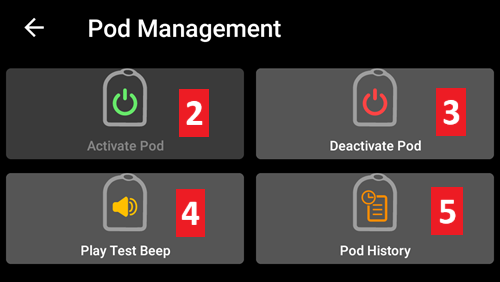
The table below describes each button and it’s function:
Button |
Function |
|---|---|
1 |
Access the Pod Mgmt settings |
2 |
Activate Pod: Primes and activates a new pod. |
3 |
Deactivate Pod: Deactivates the currently active pod. |
4 |
Play Test Beep : Plays a single test beep on the pod when pressed. |
5 |
Pod history : Displays the active pod activity history. |
DASH设置
The Dash driver settings are configurable from the top-left hand corner hamburger menu under Config Builder (1) ➜ Pump Dash ➜ Settings Gear (3) by selecting the radio button (2) titled Dash. 勾选设置齿轮图标(3)旁的复选框(4),即可在AAPS界面中将DASH菜单显示为名为DASH的标签页。
注意: 访问DASH设置的快捷方式是通过DASH标签页右上角的三点菜单(1),然后从下拉菜单中选择DASH偏好设置(2)*。*

以下是设置分组列表,您可通过切换开关启用或禁用下文所述的大多数选项:
NOTE: An asterisk (*) denotes the default setting is enabled.
Confirmation beeps
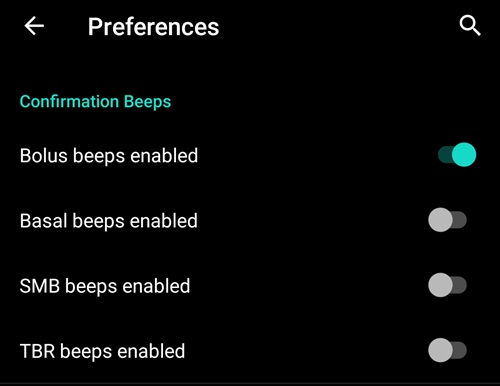
提供储药器对大剂量注射、基础率、超微大剂量(SMB)和临时基础率(TBR)输送及变更的确认提示音。
Bolus beeps enabled: Enable or disable confirmation beeps when a bolus is delivered.
Basal beeps enabled: Enable or disable confirmation beeps when a new basal rate is set, active basal rate is canceled or current basal rate is changed.
SMB beeps enabled: Enable or disable confirmation beeps when a SMB is delivered.
TBR beeps enabled: Enable or disable confirmation beeps when a TBR is set or canceled.
Alerts
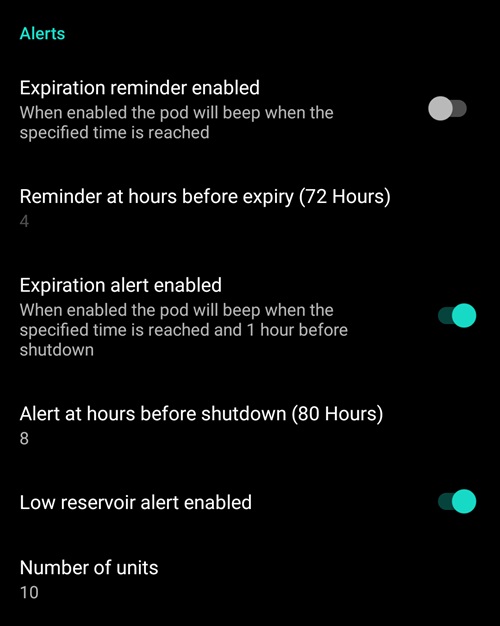
当储药器达到过期、关机或根据设定阈值单位检测到低药量时,提供AAPS警报提示。
NOTE: an AAPS notification will ALWAYS be issued for any alert after the initial communication with the pod since the alert was triggered. 除非启用”自动确认储药器警报”功能,否则仅消除通知并不会消除警报状态。 要手动消除警报,必须访问DASH标签页并点击静音警报按钮*。*
Expiration reminder enabled: Enable or disable the pod expiration reminder set to trigger when the defined number of hours before shutdown is reached.
Hours before shutdown: Defines the number hours before the active pod shutdown occurs, which will then trigger the expiration reminder alert.
Low reservoir alert enabled: Enable or disable an alert when the pod’s remaining units low reservoir limit is reached as defined in the Number of units field.
Number of units: The number of units at which to trigger the pod low reservoir alert.
Notifications
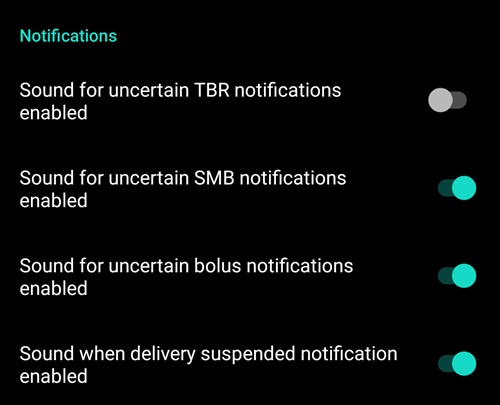
The Notification section allows the user to select their preferred notifications and audible phone alerts when AAPS is uncertain about the status of TBR, SMB, or bolus, and when delivery suspended events were successful.
NOTE: These are notifications only, no audible beep alerts are made.
Sound for uncertain TBR notifications enabled: Enable or disable this setting to trigger an audible alert and visual notification when AAPS is uncertain if a TBR was successfully set.
Sound for uncertain SMB notifications enabled: Enable or disable this setting to trigger an audible alert and visual notification when AAPS is uncertain if an SMB was successfully delivered.
Sound for uncertain bolus notifications enabled: Enable or disable this setting to trigger an audible alert and visual notification when AAPS is uncertain if a bolus was successfully delivered.
Sound when delivery suspended notifications enabled: Enable or disable this setting to trigger an audible alert and visual notification when suspend delivery was successfully delivered.
操作 (ACT) 标签页
This tab is well documented in the main AAPS documentation but there are a few items on this tab that are specific to how the DASH differs from tube based pumps, especially after the processes of applying a new pod.
Go to the Actions (ACT) tab in the main AAPS interface.
在Careportal(1)部分,胰岛素和输注套管字段的使用时长会在每次更换储药器后重置为0天0小时。 这是由于Omnipod胰岛素泵的构造和工作原理决定的。 由于储药器在敷贴时会直接将输注套管插入皮肤,Omnipod泵不使用传统导管。 因此更换储药器后,这些数值的使用时长会自动归零。 泵电池使用时长不显示报告,因为储药器内置电池的寿命始终超过储药器使用期限(最长80小时)。 泵电池和胰岛素储药器均内置于每个储药器单元内部。
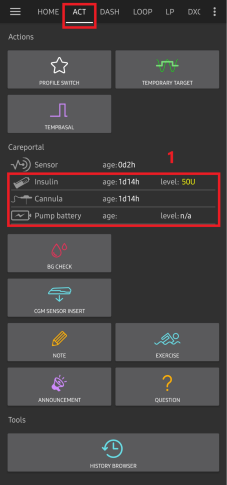
Level
胰岛素储药量
显示的胰岛素储药量为DASH报告的药量。 但储药器仅在剩余药量低于50单位时才会报告实际胰岛素储药量。 在此之前将始终显示”高于50单位”。 报告数值并不精确:当储药器显示”空”时,多数情况下储药器内仍会残留若干单位的胰岛素。
DASH概览标签页将显示如下内容:
高于50单位 - 储药器报告当前药量超过50单位。
低于50单位 - 储药器报告的剩余胰岛素实际药量。
补充说明:
短信查询 - 短信回复将返回实际数值或”50+单位”
Nightscout - 当药量超过50单位时,会向Nightscout上传50的数值(14.07及更早版本)。 较新版本在药量超过50单位时将报告”50+”的数值。
故障排除
This section covers common known issues and solutions for Omnipod DASH use with AAPS. There is also General Troubleshooting section in the documentation that should be reviewed as it covers relevant topics for some Pod issues too.
Bluetooth related issues
For known issues with Bluetooth connections, dropouts of pump/pods, or activation and connection issues Bluetooth Troubleshooting
Delivery suspended
不再设有暂停按钮。 如需”暂停”储药器,可设置持续时间为X分钟的零值临时基础率(TBR)。
在执行配置文件切换时,DASH必须在设置新的基础率配置文件前暂停胰岛素输注。 若两条指令间通信失败,输注可能保持暂停状态。 当发生此情况时:
胰岛素输注将完全停止,包括基础率、超微大剂量(SMB)、手动大剂量等所有输注功能。
系统可能显示某条指令未确认的通知(具体取决于通信失败发生的时机)。
AAPS将每15分钟尝试设置新的基础率配置文件。
若输注仍处于暂停状态(恢复输注失败),AAPS将每15分钟显示一次输注暂停的提醒通知。
The Resume delivery button will be active if the user chooses to resume delivery manually.
若AAPS自动恢复输注失败(当储药器无法连接、静音等情况发生时),储药器将每分钟发出4次蜂鸣、持续3分钟;若暂停状态超过20分钟仍未恢复,则每15分钟重复此警报模式。
对于未确认的指令,”刷新储药器状态”操作可予以确认或否决。
NOTE: When you hear beeps from the pod, do not assume that delivery will continue without checking the phone, delivery might stay suspended, so you need to check !
Pod Failures
储药器偶尔会因各种问题发生故障,包括储药器自身的硬件问题。
It is best practice not to raise support / replacement cases with Insulet, since AAPS is not an approved method of using the Pods.
故障代码列表可在此查阅以帮助判断故障原因。
Preventing error 49 pod failures
该故障与指令对应的储药器状态错误或胰岛素输注指令执行出错有关。 此时驱动程序和储药器对实际状态的判断出现分歧。 出于内置安全机制,储药器会触发不可恢复的49号错误代码(0x31),导致俗称”尖叫器”的状态——这种持续恼人的蜂鸣声只能通过在储药器背面指定位置打孔来停止。 “49号储药器故障”的具体成因通常难以追溯。 在怀疑可能发生此类故障的情况下(例如应用程序崩溃、运行开发版本或重新安装时)。
Pump Unreachable Alerts
When no communication can be established with the pod for a pre-configured time a “Pump unreachable” alert will be raised. Pump unreachable alerts can be configured by going to the top right-hand side three-dot menu, selecting Preferences ➜ Local Alerts ➜ Pump unreachable threshold [min]. 建议将警报阈值设置为120分钟后触发。
Export Settings
导出AAPS设置可让您恢复所有配置参数,更重要的是能完整保留所有目标进度状态。 当需要恢复到”最后已知的正常状态”、或卸载重装AAPS后、以及手机丢失需在新设备上重新安装时,均可通过该功能还原设置。
NOTE: The active pod information is included in the exported settings. 若导入”旧版”导出文件,您当前使用的储药器将”失效”。 别无他法。 在某些情况下(例如_计划性_更换手机时),您可能需要使用导出文件来恢复AAPS*设置,同时保留当前正在使用的储药器。 在这种情况下,必须使用最近导出的、包含当前使用中储药器信息的设置文件。*
最佳做法是在激活储药器后立即进行设置导出。 如此可在出现问题时随时恢复当前使用中的储药器状态。 例如在切换到备用手机时。
Regularly (after each export preferably) copy your exported settings to a safe place (a cloud drive e.g. Google Drive) that is accessible by any phone when needed. This allows you to restore to a phone from anywhere in case of a phone loss or factory reset of your phone while you are not at home.
Import Settings
WARNING: Please note that importing settings will possibly import an outdated Pod status (depending when you made the last export/backup).
As a result, there is a risk of losing the active Pod! (see Exporting Settings).
Only try an import when no other options are available.
导入含激活状态储药器的设置时,请确认该导出文件包含当前使用中的储药器信息。
在储药器激活状态下导入:(可能导致储药器失效!)
Make sure you are importing settings that were recently exported with the currently active Pod!
导入您的设置文件。
请核对所有偏好设置项。
导入设置(无激活状态的储药器会话)
导入任何近期导出的文件均可生效(参见上文说明)
导入您的设置文件。
请核对所有偏好设置项。
若导入的设置包含任何激活状态的储药器数据,您可能需要停用这个”不存在”的储药器。
Importing settings that contain Pod state from an inactive Pod
当导入包含已停用储药器数据的设置时,AAPS将尝试与其建立连接,这显然会导致失败。 在此情况下您将无法激活新储药器。
To remove the old pod session:
“try” to de-activate the Pod. The de-activation will likely fail.
选择”重试”。
经过两到三次重试后,系统将提供移除储药器的选项。
待旧储药器移除后,即可激活新储药器。
Generic error: java.lan.illegalStateException: Trying to set a Bluetooth Address to ***, but it is already set to ***.
If you receive this error when attempting to Initialize a new pod AAPS fails as it still has settings for an old pod stored in configuration.
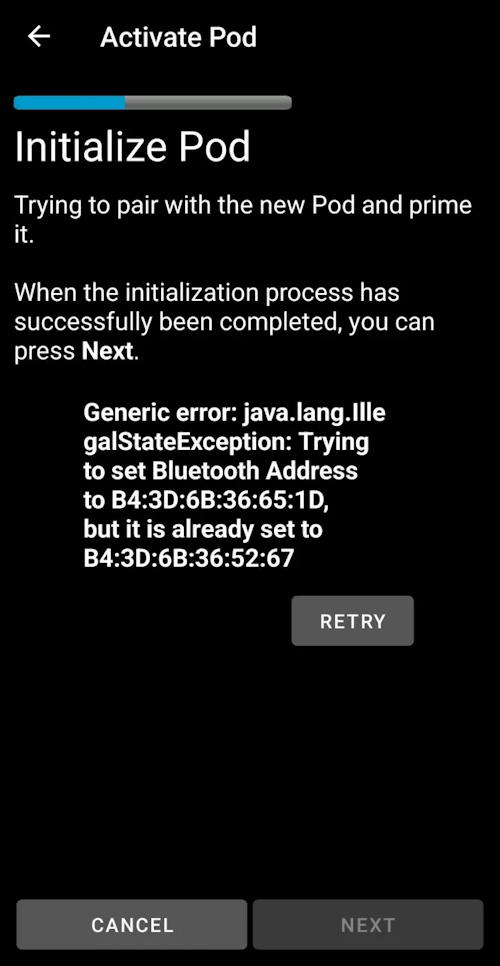
This can happen if you restore from a backup, or a pod deactivation fails.
To resolve keep clicking on RETRY until a Discard option is shown, then discard. This procedure should work for De-Activating a pod too.
You should now be able to Activate a new pod.
Reinstalling AAPS
When uninstalling AAPS you will lose all your settings, objectives and the current Pod session. To restore them make sure you have a recent exported settings file available!
当使用激活状态的储药器时,请确保已备份当前储药器会话的导出文件,否则导入旧版设置将导致当前使用中的储药器失效。
Export your settings and store a copy in a safe place (e.g Google Drive).
卸载AAPS并重启您的手机。
安装新版本的AAPS。
导入您的设置文件。
请核对所有偏好设置(可选择重新导入设置文件)。
激活新储药器。
操作完成后:请导出当前设置文件。
Updating AAPS to a newer version
多数情况下无需卸载旧版本。 您可直接安装新版本进行”就地升级”。 This is also possible when on an active Pod session.
请导出您的设置文件。
安装新版AAPS。
请确认安装是否成功
恢复原储药器使用或激活新储药器。
操作完成后:请导出当前设置文件。
Omnipod driver alerts
The Omnipod Dash driver presents a variety of unique alerts on the Overview tab, most of them are informational and can be dismissed while some provide the user with an action requiring their input to resolve the cause of the triggered alert.
以下是您可能会遇到的主要警报摘要:
未检测到活动的Pod会话。 该警报可通过点击暂缓临时关闭,但在新储药器激活前将持续触发。 该警报激活后将自动静音。
储药器已暂停 提示性警报,表明储药器处于暂停状态。
设置基础配置文件失败:输注可能已暂停! 请从Omnipod标签页手动刷新储药器状态,必要时恢复输注。 提示性警报:储药器基础配置文件设置失败,需点击Omnipod标签页的刷新按钮。
无法确认超微大剂量输注是否成功。 若确认大剂量未成功输注,请手动从治疗记录中删除该条超微大剂量记录。 警报提示:超微大剂量输注命令的成功状态无法验证,您需要检查DASH标签页的最后大剂量字段确认输注是否成功,若失败则需从治疗记录页删除该条目。
无法确认”任务大剂量/临时基础率/超微大剂量”是否完成,请人工核验操作结果。
DASH系统求助渠道
DASH系统的所有开发工作均由社区志愿者无偿完成;在请求协助前,请谨记以下准则:
**第0级:**查阅本文档相关章节,确保您已理解遇到问题的功能模块的正确运作方式。
第1级:若参照本文档仍无法解决问题,请通过此邀请链接加入Discord平台的*#AAPS*频道寻求帮助。 There are also numerous Facebook and other groups you can ask in too (see Getting Help)
**第2级:**在问题追踪页面搜索现有问题报告,确认您的问题是否已被记录。若存在相关报告,请补充说明您的情况。 如果没有,请创建一个新问题并附上您的日志文件。
请保持耐心——我们社区成员多为热心志愿者,问题的解决往往需要用户和开发者双方投入时间与耐心。
When requesting help come prepared with the following information to help those in the community with your specific questions and problems:
Android phone make and model
Android OS version (e.g 15 or 16)
Did you recently upgrade your Android OS version?
The version of AAPS you are running
Plain english description of the problem you are facing considering some of the following things
Was it working before now?
When did it work or not work?
Did you make any changes to configuration or profile settings?
Did you pair a new bluetooth device?
Did you upgrade or install a new app?
How long was it working before it stopped working?