Building the Wear AAPS app
The AAPS app for a Wear OS smartwatch (the Wear apk, aaps-wear-….apk) is a separate installation file from the AAPS phone app. You need both: the phone app runs the loop, the watch app shows its data and can send commands to it. The watch app is installed from the phone, see Set up AAPS on your Wear OS watch.
The two apps only work together when they match:
Same AAPS version on the phone and on the watch.
Same keystore used to sign both apps.
The simplest way to guarantee this is to build both apps at the same time, in the same build. The browser build does this for you: every build produces the phone apk and the Wear apk together. With Android Studio or the command line, you build the Wear apk as a second step right after the phone apk.
Примечание
Already using AAPS on your phone but no Wear apk from the same build? Build both apps again, with the same keystore, and reinstall the phone app too. A Wear apk built months later, or with a different Android Studio version, is unlikely to be compatible with the phone app.
Supported Wear OS versions
AAPS runs on watches with Wear OS 3.0, 3.2 or 3.5 (Android 11, API level 30) or newer (Wear OS 4, 5 and 6). Watches with Wear OS 2 are not supported.
Предупреждение
AAPS Watchfaces are available for Wear OS smartwatches with API level 30 to 33 (Wear OS 3.0, 3.2, 3.5 and 4).
Newer Wear OS versions progressively break the AAPS watchfaces — see Wear OS watch face changes and the Wear OS 5 limitations.
Get the Wear apk with your build method
Follow the section for the method you use to build AAPS.
Browser build (recommended)
Nothing extra to do. Every browser build produces two files from the same source and the same keystore:
aaps-….apk: the phone app.aaps-wear-….apk: the watch app.
The Wear apk follows the variant you selected for the build: fullRelease gives the AAPS Wear app, aapsclientRelease the AAPSClient Wear app, pumpcontrolRelease the PumpControl Wear app. Each Wear app only talks to its matching phone app.
Where to find the Wear apk:
AAPS Builder: on the build page, scroll down to Artifacts and download
aaps-wear-….apknext to the phone app, as shown in Step 5 – Install the app on your phone. Download it on the phone that runs AAPS if you install the watch app from the phone (Wear Installer 2 or Easy Fire Tools), or on your computer if you use ADB.
Fork with Google Drive: open your Google Drive, folder
AAPS, then the folder of the version you built. It contains the phone apk and the Wear apk, see Step 4 – Build the APK.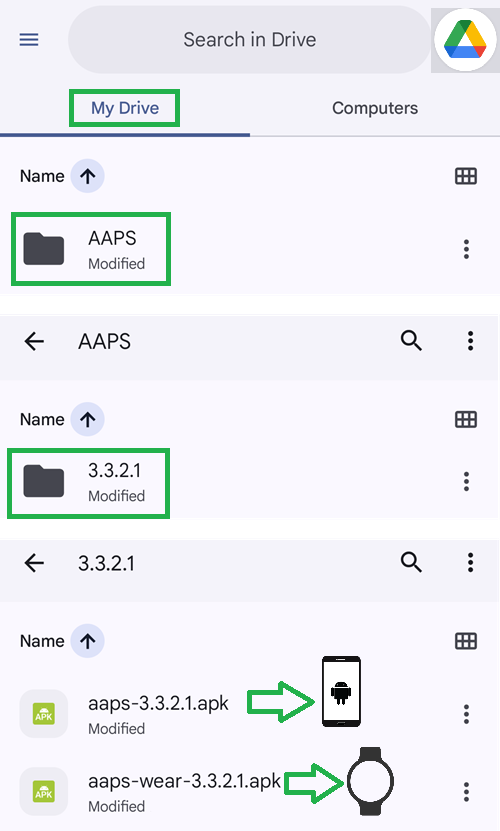
Keep the Wear apk together with the phone apk in your backups. With AAPS Builder, the files stay on the build page for 14 days only.
Next: install the Wear apk on the watch, see Set up AAPS on your Wear OS watch.
Android Studio
The Wear apk is built like the phone apk, as a second signed build. Do it right after the phone apk, with the same Android Studio version and the same keystore.
Follow the instructions for Android Studio Build.
When you reach module selection in «Build the AAPS signed apk», make sure to select
AndroidAPS.wear.

Select «fullRelease» to generate the AAPS Wear apk file.

Вместо этого можно собрать “pumpcontrolRelease” из выпадающего меню, которое позволит дистанционно управлять помпой, но вне цикла.
Next: install the Wear apk on the watch, see Set up AAPS on your Wear OS watch.
Troubleshooting the Android Studio build
In the process of building the full AAPS app (and in fact any signed app), Android Studio generates a .json file in the same folder. This then causes errors with uncommitted changes when you try to build the next signed app, like the AAPS wear app. Самый быстрый способ решения это переход к папке, в которой было построено полное приложение AAPS, путь к папке, вероятно, выглядит как-то так:
C:\Users\Your Name\AndroidStudioProjects\AndroidAPS\app\full\release.
Удалите или переместите ненужный файл .json из этой папки. Затем попробуйте снова создать приложение AAPS. If that doesn’t work, the more detailed troubleshooting guide will help you to identify the specific file causing the issue, which could also be your keystore file.
Command line
Follow Build instructions for the command-line and repeat the compile and sign steps for the wear module, with the same keystore:
./gradlew :wear:assembleFullRelease
The unsigned Wear apk is written under wear/build/outputs/apk/full/release/. Sign it with apksigner exactly like the phone apk, then install it on the watch, see Set up AAPS on your Wear OS watch.